Why Does My Phone Say SOS? What It Means, Common Causes, How to Fix the Problem, and the Safest Ways to Get Connected Again

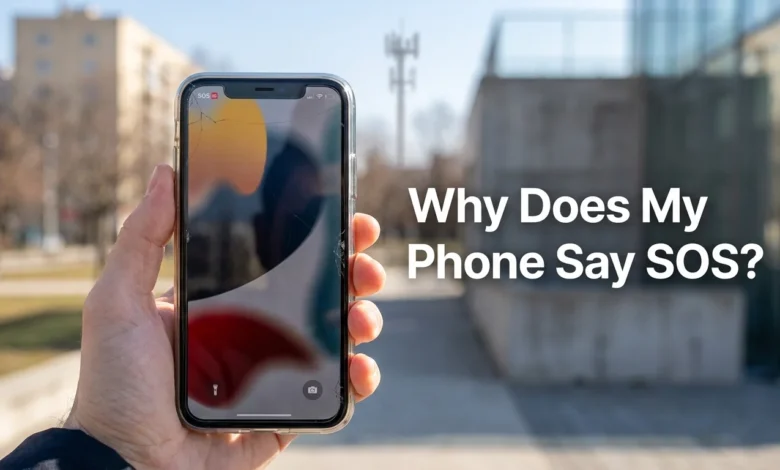
If you’re asking why does my phone say SOS?” it has usually lost its normal connection to your cellular carrier. On an iPhone, the SOS or SOS Only status means regular cellular service isn’t available, although an emergency call may still be possible through another carrier’s network. The problem can come from weak coverage, a carrier outage, your SIM or eSIM, account settings, or a temporary connection issue.
| What you see | What it usually means | What to do first |
|---|---|---|
| SOS or SOS Only | iPhone isn’t connected to its normal carrier | Check coverage and carrier outages |
| No Service | No usable cellular network connection | Toggle Airplane Mode and restart |
| Searching | Phone is trying to find a cellular network | Wait briefly, move locations, then reconnect |
| Emergency calls only | Similar status often seen on Android phones | Check network, SIM, and carrier service |
| SOS while traveling | Roaming or network-selection issue may be involved | Check roaming and your cellular line |
Quick answer: SOS on an iPhone means your normal cellular network is unavailable, but the phone may still be able to contact emergency services using another network. Start by checking for an outage or weak signal, then toggle Airplane Mode, restart the phone, and check your SIM or eSIM before resetting network settings.
Key Takeaways
- SOS does not automatically mean your phone is damaged.
- A carrier outage or weak coverage can trigger the status.
- SIM, eSIM, activation, and account problems can cause the same symptom.
- Apple recommends reconnecting with Airplane Mode before trying more disruptive fixes.
- Network settings should usually be reset later, not as the first troubleshooting step.
- If there’s an actual emergency, try calling 911 before spending time troubleshooting.
What Does SOS Mean on a Phone?
Apple says SOS or SOS Only indicates that an iPhone isn’t connected to its regular cellular network. In the United States, Canada, and Australia, the device may still be able to make emergency calls through another available carrier network. That is why you can see the indicator even though ordinary calls, texts, or cellular data aren’t working.
This status is different from Emergency SOS, which is a feature you deliberately activate to contact emergency services. Seeing the small network-status indicator does not mean your iPhone has automatically called 911 or sent an emergency alert. Apple and Google both provide separate Emergency SOS features that users can activate when help is needed.
The exact wording can differ on Android devices, where you may see a message such as “Emergency calls only” instead. For more background on how the two major mobile platforms differ, Techrolab’s Android and iOS comparison covers the broader differences. The troubleshooting below focuses mainly on iPhone because Apple specifically uses the SOS and SOS Only status indicators.
Why Does My Phone Say SOS in the First Place?
Poor cellular coverage is one of the simplest explanations. Your phone may lose its carrier connection inside a basement, parking garage, large building, remote area, or another location where the signal can’t reach you reliably. Moving outdoors or traveling a short distance may restore service without changing any settings.
A carrier outage can create the same result even when your phone is working normally. Apple specifically recommends asking your carrier whether there are outages in your area and confirming that your account is active and properly provisioned. If several nearby people using the same carrier lose service at the same time, a network problem becomes more likely than a failure inside your handset.
Your SIM or eSIM can also be responsible. Apple advises Dual SIM users to confirm that the correct cellular line is enabled, and that a missing line may require the carrier to set up the eSIM again or replace a physical SIM. A damaged SIM, incomplete activation, suspended account, or provisioning error can prevent the device from registering with the carrier.
Software and carrier settings are another possibility. Carrier settings contain network-related configuration information and may add or update support for cellular features such as 5G and Wi-Fi Calling. Apple lets you manually check for an update under Settings > General > About while connected to Wi-Fi.
How to Fix a Phone That Says SOS
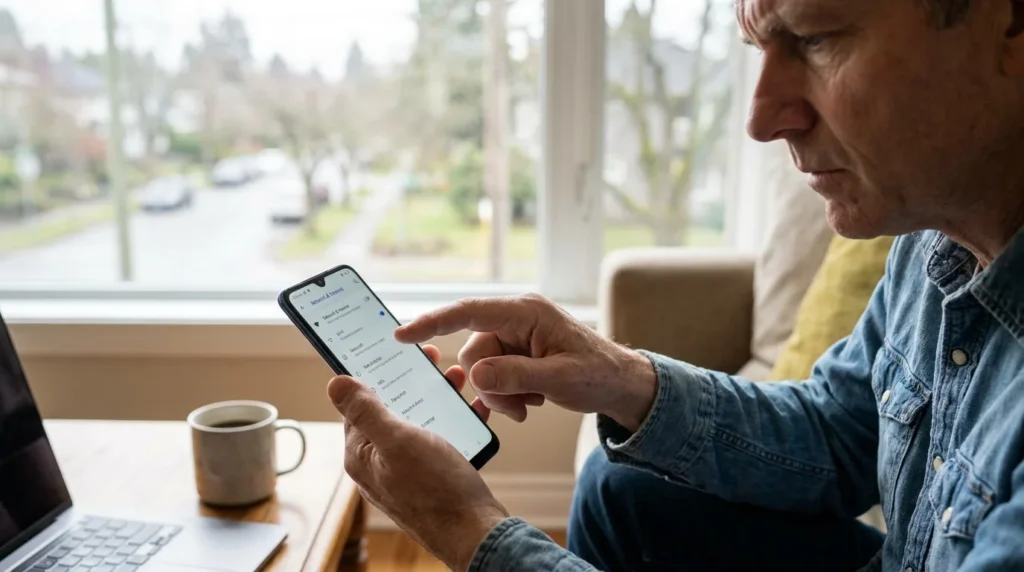
Use these steps in order because the early fixes change very little on your phone. They also help you determine whether the problem is caused by your location, carrier, cellular line, or device. Avoid erasing the phone or making several major settings changes at once.
- Move to an area with stronger reception. Go outdoors, leave a basement or garage, or move several blocks if possible. If service returns quickly, local coverage was probably the cause.
- Check whether your carrier has an outage. Use Wi-Fi to visit your carrier’s official status or support page. You can also compare your service with another nearby phone using the same network.
- Turn Airplane Mode on for at least 15 seconds. Open Settings, enable Airplane Mode, wait at least 15 seconds, then turn it off. Apple recommends this as an initial step to reconnect an iPhone that has lost cellular service.
- Restart your phone. A restart gives the device another opportunity to register with the carrier network. Check the status bar again after the phone fully starts.
- Check your cellular line, SIM, or eSIM. On an iPhone, open Settings > Cellular and confirm your intended line is enabled. If the line is missing entirely, contact the carrier before deleting an eSIM or making larger changes.
- Check for iOS and carrier-settings updates. Connect to Wi-Fi, then open Settings > General > About, and install any carrier settings update that appears. You can also check for an available iOS update under Software Update.
- Check roaming if you’re traveling. International travelers may need Cellular Data and Data Roaming enabled for the appropriate line. Apple specifically includes roaming settings as part of the checks for people who see SOS or No Service while abroad.
- Reset network settings only after simpler fixes fail. Go to Settings > General > Transfer or Reset iPhone > Reset > Reset Network Settings. This removes saved network configuration, including Wi-Fi passwords, cellular settings, and VPN or APN settings, so know those details before proceeding.
If you’re learning your way around Apple’s software settings, Techrolab also has an iOS 17 overview covering the operating-system side of the iPhone experience. Readers comparing Apple phones with Google hardware may also find the site’s Pixel 6 vs. Pixel 7 guide useful. These internal resources provide broader device context, while Apple’s current support documentation should remain your reference for present-day troubleshooting steps.
How to Tell a Carrier Outage From a Problem With Your Phone
Look at what other phones are doing before changing advanced settings. If multiple nearby people people who use the same carrier lose cellular service at the same timeat the same time, the carrier or a local tower is a strong suspect. If everyone else has service and only your device is affected, focus more closely on your SIM, eSIM, line activation, software, and hardware.
Location also provides an important clue. If your connection returns after you leave a building or drive a short distance, it’s more likely to be due to weak local coverage than to a nationwide outage. If the phone stays disconnected across several locations while other customers have normal service, contacting your carrier is the next useful diagnostic step.
Do not immediately factory reset the device, as an outage cannot be resolved by erasing your data. A reset can also create extra setup work while leaving the original carrier problem untouched. Check the network, account, SIM or eSIM, carrier settings, and standard connection fixes first.
What If Wi-Fi Still Works?
Wi-Fi and cellular service are separate connections, so your phone can show an emergency-only cellular status while websites and apps continue to work over Wi-Fi. If Wi-Fi Calling was already configured and your carrier supports it, you may also be able to make calls over a wireless internet connection during certain cellular disruptions. Availability depends on your carrier, account, phone, and network conditions.
If both your cellular connection and home Wi-Fi are unreliable, troubleshoot them as separate problems. Techrolab’s guide to signs your router needs an upgrade explains common Wi-Fi symptoms such as weak coverage and frequent disconnections. Fixing a router will not restore a failed cellular network, but a dependable Wi-Fi connection can be useful while cellular service is unavailable.
When Should You Contact Your Carrier?
Contact your carrier when basic reconnect steps don’t work, your cellular line has disappeared, or you suspect a SIM, eSIM, activation, or billing issue. Apple recommends asking the carrier to verify that your account is active, your device is not blocked, your plan is correct, coverage is available, and no local outage is affecting service. Only the carrier can directly inspect and change many account-level network settings.
You should also involve the carrier before assuming the phone needs hardware repair. If the network provider confirms that your account, SIM or eSIM, local network, and provisioning are all working, then device-level diagnostics make more sense. Apple notes that hardware service may be appropriate after carrier-side problems have been ruled out.
Can You Still Call 911 When Your Phone Says SOS?
An iPhone showing the indicator may still be able to make an emergency call through another carrier network in supported regions, including the United States. That capability should not be treated as a guarantee because successful emergency calling still depends on an available connection. If you need urgent help, try the emergency call instead of troubleshooting the status bar first.
If the call does not connect, use another available phone, a landline, or another reliable way to contact emergency services. Some newer supported devices also provide satellite-based emergency options when cellular and Wi-Fi networks are unavailable. Availability varies by model and region, so check the emergency features supported by your specific device.
The Bottom Line
Seeing an emergency-only status usually means your phone can temporarily connect to its normal cellular carrier, not that the handset has suddenly failed. Start with coverage and outage checks, reconnect with Airplane Mode, restart the device, then inspect your cellular line and carrier settings. This sequence resolves the easiest causes first while avoiding unnecessary resets.
If those steps do not restore service, your carrier can verify your account, local network, and SIM or eSIM provisioning. Once the carrier rules out those issues, device diagnostics or repair becomes a more reasonable next step. For an actual emergency, attempt the emergency call first and troubleshoot the connection afterward.
Frequently Asked Questions
Why does my phone showw” “S”OS” even though I normally have service?
A temporary carrier oua tage, issueroa blem, failed network registratioa n, or SIM/eSIM issucausen make the meto ssage appear in an area where you normally receive good service. First compare your phone with another device on the same carrier and check your provider’s status information. If only your device is affected, work through the connection and cellular-line checks above.
Does SOS mean my phone is broken?
No, the status alone does not prove that your phone has a hardware problem. Weak coverage, outages, account issues, and SIM or eSIM problems can all cause the same symptom. Hardware becomes a stronger possibility only after your carrier and standard troubleshooting steps have ruled out the more common causes.
Can an eSIM problem cause SOS Only?
Yes, an inactive, missing, or incorrectly provisioned eSIM can prevent an iPhone from registering with its carrier. Check Settings > Cellular to confirm the line appears and is switched on. If the line is missing or activation fails, contact the carrier rather than deleting the eSIM without a replacement plan.
Should I reset network settings to remove SOS?
A network reset can help with persistent connectivity problems, but it should come after the simpler checks. It removes stored Wi-Fi networks and passwords along with cellular, VPN, and APN settings. Check the carrier, Airplane Mode, restart, SIM/eSIM, and available updates before using it.