Laptop Is Not Charging? Learn How to Reset, Replace, or Repair Power Components Without Guesswork

Introduction
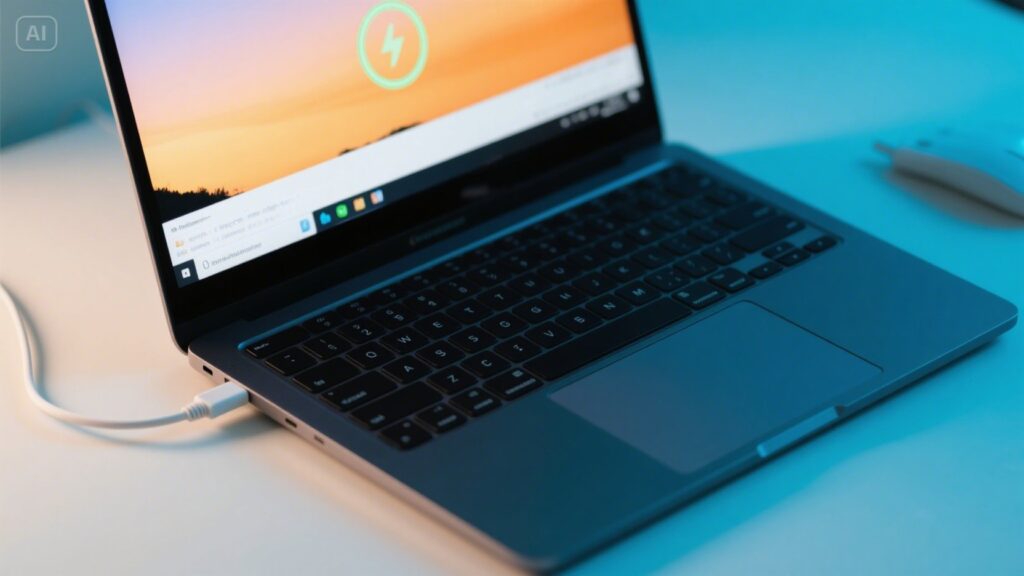
If your laptop is not charging, you’re not alone. Whether you see “plugged in, not charging,” or your battery refuses to respond, a computer that won’t charge is frustrating.
Encountering issues with your laptop not charging can be frustrating, especially when you rely on it for work, study, or entertainment. Fortunately, many charging problems can be diagnosed and resolved without guesswork.
But before you rush to a repair shop or assume the worst, there are clear steps to diagnose and fix the problem yourself, without any guesswork. In this in-depth guide, you’ll learn how to reset system settings, replace faulty components, and repair or maintain your power system to get your laptop charging again.
| Cause | Symptoms | Recommended Action | DIY Friendly |
| Faulty AC Adapter | There is no charging light, and the adapter heats excessively | Replace the adapter with a certified model | ✅ Yes |
| Damaged Charging Port | Loose connection, requires wiggling to charge | Clean the port or have it repaired professionally | ⚠️ Partial |
| Worn-out Battery | Fast draining, doesn’t hold a charge | Replace battery | ✅ Yes |
| Driver or Firmware Issue | “Plugged in, not charging” message | Reinstall drivers or update BIOS | ✅ Yes |
| Power Management Settings | Charging stops at 60% or lower | Adjust charging settings in the system utility | ✅ Yes |
| Motherboard or IC Failure | No response with new charger/battery | Requires professional diagnostics and repair | ❌ No |
How Laptop Charging Works: A Brief Overview
To effectively fix a charging issue, it’s essential to understand how a laptop’s charging system functions. The process involves multiple hardware components working together. These include the AC adapter, power jack or charging port, battery, power management IC (integrated circuit), and low-level firmware like BIOS or UEFI.
When one of these parts fails or miscommunicates with the system, the battery may not charge properly.
Key Components
- Charger/AC Adapter: Converts wall outlet AC power into usable DC.
- Power Jack: Connects the charger to the laptop motherboard.
- Battery: Stores energy and provides portable power.
- Power Management IC: Regulates voltage and current during charging.
- BIOS/UEFI: Controls how the hardware interacts with software.
Laptop is Not Charging? Common Causes
A laptop might stop charging for several reasons, from simple hardware issues to complex software misconfigurations. Here’s a comparative look at typical problems:
| Cause | Symptoms | DIY Fix? |
| Faulty Charger/Adapter | No power, intermittent connection | Yes |
| Loose or Dirty Charging Port | Wiggly connection requires precise alignment | Yes |
| Outdated Power Drivers | “Plugged in, not charging” message | Yes |
| Battery Degradation | Low battery health, fast discharges | Yes (replace) |
| BIOS/Firmware Bugs | Erratic charging, hardware unrecognized | Yes (update) |
| Motherboard Component Failure | No response, even with new parts | No (requires pro) |
Common Misconceptions About Laptop Charging
Many users misunderstand how laptop charging works, which can lead to unnecessary worry or improper fixes. For example, some believe that leaving a laptop plugged in constantly will ruin the battery immediately, but modern laptops are designed with circuitry to prevent overcharging.
Others assume that a slow charge always indicates a faulty battery, when in reality, background processes, high CPU usage, or extreme temperatures can temporarily reduce charging speed. Understanding these nuances helps users make informed decisions before replacing hardware or seeking repairs, ensuring that minor issues aren’t mistaken for major problems.
Step 1: Perform a Power Reset
Windows Devices
Shut down the laptop, unplug the charger, and remove the battery if it’s detachable. Press and hold the power button for 30 seconds. Reattach everything and restart your computer.
MacBooks (SMC Reset)
Turn off the Mac. Hold Shift + Control + Option + Power for 10 seconds. Release all keys and turn it back on. This resets the system management controller, which may fix charging behavior.
Step 2: Inspect the Charger and Cable
Carefully examine your power adapter and cable. Look for signs of wear and tear, frayed wires, or bent connectors. It may be defective if the power brick feels unusually hot or the LED indicator fails to light up.
Testing with another compatible charger is a good way to confirm whether the adapter is the culprit.
Step 3: Check the Charging Port
Look inside the charging port using a flashlight. Dust, lint, or other debris can block proper electrical contact. Clean gently using a wooden toothpick or compressed air. If the charger plug is loose inside the port or needs to be held at an angle, the port may be damaged and need repair.
Step 4: Update or Reinstall Battery Drivers
In many Windows laptops, the charging issue can be resolved by refreshing the battery driver:
How to Reinstall Battery Drivers?
- Open Device Manager.
- Expand the Batteries category.
- Uninstall both the Microsoft AC Adapter and the Microsoft ACPI-Compliant Control Method Battery.
- Reboot your system to reinstall them automatically.
Step 5: Adjust Charging Settings
Modern laptops often include software designed to extend battery lifespan. These utilities might prevent charging beyond a certain level.
This feature is found in Lenovo Vantage under Power settings in Lenovo machines. ASUS offers a similar option via its Battery Health Charging tool, and Dell users can adjust battery settings using the Dell Power Manager.
If such settings are enabled, consider adjusting them to allow complete charging.
Step 6: Evaluate Battery Health
Your battery’s age and health significantly impact charging. You can generate a battery report on Windows by opening Command Prompt and typing:
powercfg /battery report
On a Mac, hold the Option key and click the battery icon in the menu bar to view the condition status. Third-party utilities like HWMonitor or CoconutBattery can also provide more detailed insights.
A battery showing less than 60% of its original design capacity is likely due for replacement.
Step 7: Update BIOS or UEFI Firmware
Sometimes, firmware updates resolve compatibility or power management bugs that affect charging. Visit your laptop manufacturer’s website and download the latest BIOS or UEFI update specific to your model.
Follow instructions carefully. In most cases, updating involves placing the file on a USB stick and booting it into utility mode. Make sure your laptop has sufficient battery life before starting.
Step 8: Try Replacement Parts
To rule out hardware issues:
- Test the system with a new battery if the current one shows signs of wear.
- Try a different charger, ensuring it matches the original voltage and amperage specs.
- Avoid knock-off brands with no warranty or safety certifications.
Step 9: Seek Professional Repair
If you’ve tried all previous steps without success, the problem may lie in the motherboard. Charging circuit damage, such as a blown fuse or faulty power IC, can prevent charging even when other components are functional.
This level of repair typically requires professional diagnostic tools and is best handled by a technician.
Tips for Preventing Future Charging Issues
While some problems arise naturally over time, good habits can extend the life of your battery and charger:
- Avoid constantly keeping the battery at 100% unless necessary.
- Use a surge protector to prevent electrical spikes.
- Disconnect the charger properly by holding the plug, not the cable.
- Periodically clean the charging port.
- Don’t use your laptop on soft surfaces like beds or couches that can trap heat.
Conclusion
When your laptop is not charging, it can feel like a dead end. However, this guide provides a clear path forward. With careful troubleshooting and methodical checks, you can pinpoint the problem, apply the proper fix, and avoid unnecessary repairs.
Understanding how each part of your power system works puts the control back in your hands, allowing you to resolve charging issues without guesswork or stress.
Apart from that, if you are interested to know about “Branded Merchandise Trends for 2025: What’s Hot Right Now” then visit our “Technology” category.
FAQs
Use powercfg /batteryreport in Command Prompt (Windows) or check the battery status in the menu bar (Mac).
Revert to a previous BIOS version, perform a power reset, and reinstall battery drivers.
No, always use a charger with the correct voltage and amperage for your laptop.
If the port is loose or broken, it’s best to consult a professional repair technician.