Parent Internet Viewer Explained: How U.S. Families Can Track Grades, Attendance, and School Progress


A Parent Internet Viewer is a secure school portal that lets families check student information online. Depending on the district, it may show grades, assignments, attendance, schedules, and school alerts. Some systems also send email notifications when grades fall, or a student misses class.
The term often appears as PIV, especially in school systems that use or previously used Pinnacle gradebooks. Newer districts may call the same type of service a parent portal or family portal. The exact features and login process depend on your school district.
Direct answer: A Parent Internet Viewer gives authorized parents and students online access to school records such as grades, attendance, assignments, and schedules. Schools usually protect access with a username, password, student account, or activation code. Some systems also provide automatic alerts for absences or falling grades.
| Feature | What Parents May See | Why It Helps |
|---|---|---|
| Grades | Current course grades and averages | Spot academic problems earlier |
| Assignments | Completed, missing, or upcoming work | Track unfinished schoolwork |
| Attendance | Absences and sometimes tardiness | Verify attendance records |
| Alerts | Grade or absence notifications | Reduce repeated manual checking |
| Schedules | Classes and course information | Confirm current enrollment |
| Reports | Progress or report-card information | Review longer-term performance |
| Secure login | School-issued account credentials | Protect student information |
What Is a Parent Internet Viewer?
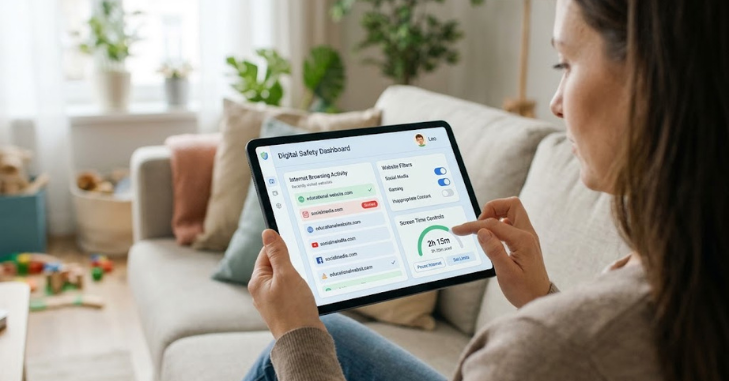
A Parent Internet Viewer is an online connection between a school’s student-information system and authorized families. It does not usually monitor a child’s general web browsing or social media use. Its main purpose is academic visibility.
For example, Broward County Public Schools describes its Pinnacle viewer as a way to access class grades. Its system can also provide alerts when grades drop below selected levels. Attendance notifications may also be available.
Other districts use different software for the same basic purpose. Kirkwood School District, for example, describes online grade access through Infinite Campus. This shows why families should follow their own district’s instructions instead of searching for one universal PIV website.
PIV Is Not the Same as Parental-Control Software
The wording can create confusion because “internet viewer” sounds like online monitoring software. A school PIV normally does not record websites, messages, searches, or app activity. It is designed to display education records that the school already maintains.
Parental-control tools serve a different purpose. Those products may filter websites, restrict screen time, or manage devices. Families interested in broader device protection can also read Techrolab’s Best Antivirus 2026 coverage, which discusses family-oriented security features.
Keeping these categories separate helps you choose the correct tool. A school portal answers questions about academic progress. Device controls address what happens on a phone, computer, or home network.
What Information Can Parents Usually View?
Available information differs by district, grade level, and software provider. Grades and attendance are among the most common features. Assignments and schedules also appear in many systems.
Some school portals offer automated email alerts. A parent might receive a message after an absence or when a grade falls below a chosen threshold. Broward County schools currently describe both grade and absence notification functions within Pinnacle access.
Schools may also provide separate services for report cards or historical records. One portal might show current class performance while another stores official reports. Check your district’s instructions before assuming every record appears in one place.
How to Access Your School’s Parent Viewer
There is no single national login page for these systems. Your school district controls access and decides which credentials are required. Start from the official district or school website.
A typical setup may involve these steps:
- Open your school or district’s official website.
- Find the Parents, Families, Gradebook, or Parent Portal section.
- Select the official grade or student-information portal.
- Enter the credentials issued by your school.
- Complete account activation if the district requires it.
- Review notification settings after signing in.
- Save the official portal address for future visits.
Some districts require stronger identity checks before issuing accounts. Paulding County School District, for example, describes an activation process tied to parental identity verification. Requirements differ, so your school’s current instructions should take priority.
Why Grades May Not Appear Immediately
An online gradebook is only as current as the information entered by teachers and administrators. A missing score does not always mean an assignment was missed. It may simply be waiting for grading or entry.
Some districts also delay opening gradebook access at the beginning of a school year. This gives schools time to finalize schedules and prepare teacher gradebooks. Broward County currently notes such a delay within its Pinnacle guidance.
Parents should therefore use portal information as one part of school communication. Contact the teacher when a grade seems incorrect or remains missing. Avoid assuming a portal entry tells the entire story.
How to Use Grade and Attendance Alerts Effectively
Notifications can make a parent portal more useful, but too many alerts can become noise. Choose alerts that point to issues requiring action. A meaningful grade threshold or absence notification often provides more value than constant updates.
Talk with your child about how you plan to use those alerts. The portal works better as a conversation tool than a surveillance system. A falling grade can start a discussion about missing work, difficult material, or needed support.
You should also consider how often you check the account. Daily review may suit a short academic problem. Weekly review may be enough when progress is stable.
Protecting a Parent Portal Account
School portals contain sensitive student information, so account security deserves attention. Use a unique password and avoid sharing credentials outside your household. Sign out when using a public or shared computer.
If your district offers multifactor authentication, enable it. Biometrics can also protect the phone or computer used to access school records. Techrolab’s guide to biometric security devices explains fingerprint, facial, and other authentication methods.
Session security also matters on shared devices. A browser can sometimes remain signed in longer than expected. Techrolab’s session management security guide explains why logout behavior and active sessions affect account safety.
What to Do When the Parent Viewer Login Does Not Work
Login problems usually come from incorrect credentials, account activation issues, or outdated portal links. First, return to the school district’s official website. Avoid using an old bookmark until you confirm the current address.
Next, check whether your username format or password has changed. School technology departments sometimes update authentication systems between academic years. A student account may also use different credentials from a parent account.
If the problem continues, use the district’s official password-recovery option or contact the school. Do not send passwords through ordinary email. School staff can tell you whether your account needs activation, verification, or a reset.
Can You Use a Parent Viewer on a Phone?
Most modern school portals can be opened through a mobile browser. Some districts also provide dedicated applications for families. The available option depends on the school system.
Mobile access can be useful for checking an attendance notice or assignment quickly. You should still protect the device with a PIN, fingerprint, or face authentication. Avoid storing school passwords on a phone that other people can freely access.
Android and iPhone security settings differ in several ways. Techrolab’s Android vs. iOS comparison covers their security, privacy, and device-management differences.
Parent Portals Have Replaced PIV in Some Districts
“PIV” is still used by some U.S. schools, but the terminology is not universal. Districts may use names such as Parent Portal, Family Portal, Infinite Campus, Focus, or another student-information platform. The underlying purpose remains similar.
Some districts have explicitly replaced older Pinnacle Parent Internet Viewer systems with newer parent portals. Paulding County provides one example of that transition. Families searching for an older PIV name may therefore need the district’s newer portal instead.
This explains why an old login page may disappear even though online grade access still exists. Search the official school website before assuming the service has ended. The current platform may simply have a different name.
How Parents Can Get More Value From Online Grade Access
A portal works best when parents focus on patterns rather than isolated numbers. Look for repeated missing assignments, sustained grade changes, or attendance problems. Those patterns provide better discussion points than one low score.
Use the information to prepare specific questions for teachers or counselors. Asking about three missing assignments is more useful than asking why a class is “going badly.” Clear questions can lead to clearer next steps.
Parents should also involve students in the process as they become more independent. Older students can learn to monitor deadlines and address problems themselves. The goal is better communication and responsibility, not constant checking.
Final Takeaway
Online parent portals give families a practical way to follow grades, assignments, attendance, and school progress. Their names and features vary, so the official district website should always be your starting point. Treat portal data as a tool for communication rather than a replacement for teachers and students.
If you find an old PIV link that no longer works, look for your district’s current Parent Portal or gradebook system. Protect the account with strong authentication and secure devices. Used thoughtfully, these systems can help families identify academic problems earlier and respond with better information.
Frequently Asked Questions
What is Parent Internet Viewer used for?
Parent Internet Viewer is primarily used to access student academic information online. Schools may show grades, assignments, attendance, schedules, or progress information. Available features depend on the district and its software.
Is PIV the same as Pinnacle?
Not exactly. Pinnacle is a gradebook system associated with many older PIV implementations. The viewer is the parent-facing access point to information stored within that school system.
Can parents see browsing history through PIV?
A normal school grade viewer does not provide general home browsing history. It focuses on academic records maintained by the school. Device-monitoring software is a separate category.
Why can’t I find my school’s PIV login?
Your district may have renamed, replaced, or moved its portal. Start from the official school district website and look for Parent Portal or Gradebook. Contact the school if the correct service remains unclear.
Are grades shown in real time?
Updates can appear quickly after teachers enter information. That does not mean every assignment is graded immediately. Always allow for teacher grading schedules and data-entry delays.
Should parents check the portal every day?
Daily checking is not necessary for every student. The best frequency depends on age, academic needs, and current concerns. A consistent weekly review often provides useful visibility without becoming excessive.