DPI Mouse Explained: How to Choose the Right Sensitivity for Gaming, Work, and Everyday Use

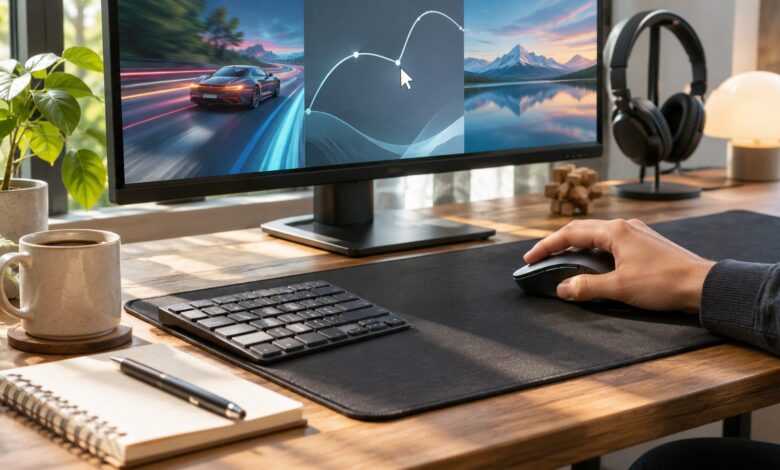
A DPI mouse setting controls how much pointer movement you get from physical hand movement. Higher DPI makes the pointer travel farther with a smaller movement. Lower DPI requires more hand movement and often gives you finer control. There is no perfect DPI number for every person or computer. Your monitor resolution, desk space, games, applications, and personal comfort all affect the right setting. For many users, starting between 800 and 1,600 DPI makes adjustment much easier. Quick answer: Mouse DPI describes how many movement counts a sensor reports for each inch of physical travel. Higher DPI produces more pointer movement from the same hand motion, while lower DPI gives slower movement. Most users should start around 800–1,600 DPI and adjust for their display, games, and comfort.
Mouse DPI at a Glance
| Setting or use | Practical starting point | What to expect |
|---|---|---|
| Everyday Windows use | 800–1,600 DPI | Balanced speed and control |
| Office productivity | 800–1,600 DPI | Comfortable pointer movement |
| Competitive FPS games | 400–800 DPI | Slower movement and precise aiming |
| General gaming | 800–1,600 DPI | Balanced speed for many genres |
| Strategy and MMO games | 1,200–2,400 DPI | Faster navigation across interfaces |
| Large or high-resolution displays | 1,600 DPI or higher | Less physical movement across the screen |
| Fine design work | Lower adjustable setting | Easier control over small movements |
Key Takeaways
- DPI affects hardware movement sensitivity, not the quality of the sensor.
- Higher numbers do not automatically make a device more accurate.
- Windows pointer speed and hardware DPI are different settings.
- Gaming sensitivity depends on both DPI and the game’s sensitivity control.
- Large displays can make a higher setting more comfortable.
- Manufacturer software is usually the easiest way to check the active value.
What Does DPI Mean on a Mouse?
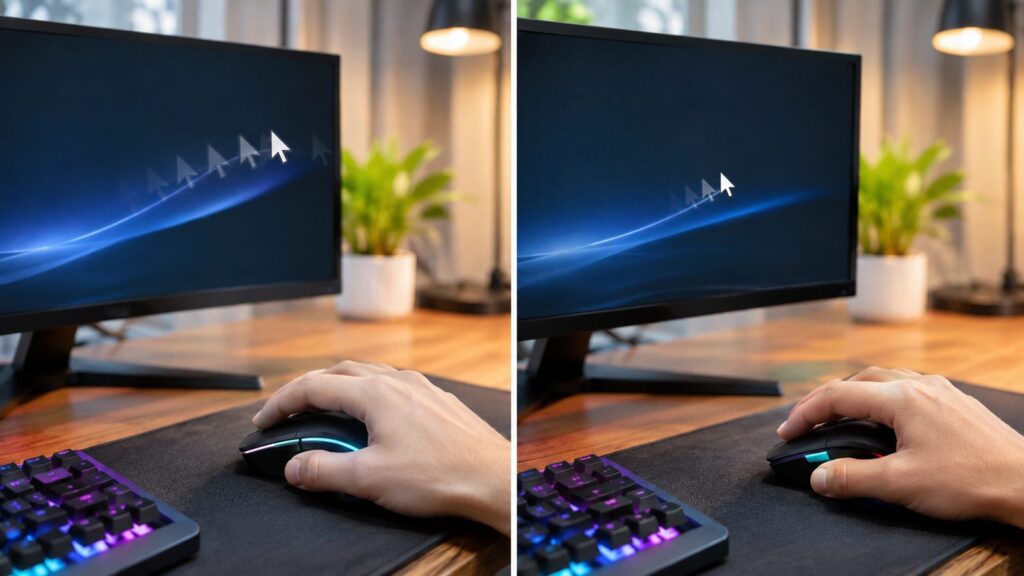
DPI stands for dots per inch, although counts per inch, or CPI, is technically more precise. The sensor reports movement as digital counts rather than placing physical dots. Manufacturers still use DPI because the term is familiar to consumers. Imagine your device is configured for 800 DPI. Moving it one inch generates about 800 movement counts before software applies additional scaling. A 1,600 setting produces twice as many counts over the same physical distance. That difference changes how much hand movement you need to cross your screen. A low setting can feel slow but controlled. A high setting can feel quick and require smaller wrist movements.
Is Higher DPI Better?
A higher number is not automatically better. Maximum DPI has become a prominent specification on gaming hardware, but that maximum says little about everyday comfort. Sensor consistency, shape, weight, polling rate, and software can matter more. Extremely high settings can also make small hand movements harder to control. A slight movement may send the pointer farther than intended. That behavior can become distracting during detailed editing or precision-focused games. The useful question is not how high the sensor can go. You should ask which setting gives predictable control with your normal hand movement. That number may be far below the device’s advertised maximum.
How to Choose a DPI Mouse Setting
Start with a moderate setting rather than chasing the largest available number. An 800 or 1,600 setting gives most people a practical baseline. Use the computer normally before changing anything again. Pay attention to whether you keep lifting your hand to reach the opposite side of the screen. If that happens often, increase DPI gradually. If you regularly overshoot buttons or targets, reduce it instead. Try to change one variable at a time during testing. Changing hardware sensitivity, Windows pointer speed, and application sensitivity together makes comparisons difficult. Keeping other settings stable helps you identify what feels better.
Best DPI for Everyday Work
For browsing, documents, spreadsheets, and general Windows use, 800–1,600 DPI is a sensible starting range. It provides enough speed without making normal pointer placement difficult. Large displays may benefit from moving toward the higher end. People using several screens may also prefer increased sensitivity. Moving across three displays requires more pointer travel than using one standard monitor. TechroLab’s 3 monitor setup guide explains other factors that affect multi-display comfort and usability. Screen resolution matters as well as physical screen size. A high-resolution workspace contains more screen coordinates to navigate. The external monitor for laptop guide can help you understand resolution, screen size, and display setup choices.
Best DPI for Gaming
Competitive shooters often favor lower values because precise aim matters more than rapid desktop movement. Settings around 400–800 DPI remain common starting points for FPS games. The in-game sensitivity setting then determines the final aiming speed. Other genres can benefit from higher values. Strategy, MMO, and fast interface-heavy games often involve frequent movement across menus and large screen areas. A range around 800–1,600 DPI, or somewhat higher, can feel more convenient. Your display can influence the experience too. Higher resolutions increase the distance a pointer must cover across the desktop. If display performance is also part of your setup, TechroLab’s gaming monitor guide for Xbox Series X explains refresh rate and input-lag concepts.
DPI vs. Sensitivity: What Is the Difference?
DPI is a hardware or firmware sensitivity setting. Software sensitivity is a multiplier applied after movement data reaches the operating system or game. These two controls can produce similar pointer-speed changes through different mechanisms. This distinction matters when copying another player’s settings. Two players can use the same hardware setting but have completely different in-game sensitivity. Their final aiming speed will therefore differ. Gamers sometimes use eDPI to compare effective sensitivity. You calculate it by multiplying hardware DPI by the game’s sensitivity value. An 800 setting with sensitivity 1.0 produces the same eDPI number as 1,600 with sensitivity 0.5.
DPI vs. Polling Rate
DPI and polling rate describe different parts of input behavior. DPI controls how much movement the sensor reports over a physical distance. Polling rate measures how frequently the device sends information to the computer. A 1,000 Hz polling rate can report movement up to 1,000 times each second. Raising DPI does not automatically raise that reporting frequency. Likewise, increasing polling rate does not make the pointer travel farther per inch. Keeping the distinction clear makes hardware specifications easier to compare. A large sensitivity number cannot compensate for poor tracking or unsuitable ergonomics. You should evaluate the whole input experience rather than one specification.
How to Check Mouse DPI in Windows 11
Windows 11 does not normally show the exact hardware DPI value for third-party devices. Its standard settings provide pointer-speed controls instead. Those controls change software behavior and should not be treated as a hardware DPI readout. The easiest method is usually the manufacturer’s configuration application. Logitech, Razer, Corsair, SteelSeries, and other gaming brands provide software for supported products. Open the device profile and look for DPI, CPI, sensitivity, or performance settings. You can also check the product manual or official specification page. Some models have a physical button that cycles through preset values. LED colors may identify each stage when the manufacturer documents those colors. For Windows pointer controls, open Settings > Bluetooth & devices > Mouse. You can change pointer speed there and access additional settings. Remember that moving this slider does not change the sensor’s programmed DPI value.
What Does the DPI Button Do?
Many gaming models include a dedicated button near the scroll wheel or underneath the body. Pressing it normally cycles through stored sensitivity stages. Common presets might include values such as 400, 800, 1,600, and 3,200. The exact stages depend on the manufacturer and profile. Companion software often lets you change, remove, or reorder those presets. This prevents accidental switching to a value you never use. Onboard memory can make these profiles more useful. Supported devices can retain selected settings when moved to another computer. Models without onboard memory may rely on software running on each PC.
Does Screen Resolution Change the Best DPI?
Resolution can affect how a particular setting feels. A pointer must travel across more pixels on a 4K desktop than on a 1080p desktop. Higher DPI can therefore reduce the physical movement needed on high-resolution screens. Physical monitor size also affects your perception of movement. A large display may encourage wider pointer travel even at the same resolution. Multiple monitors increase that distance further. Do not choose a value based only on screen specifications. Start with a reasonable baseline and test normal tasks. Comfort and predictable control matter more than matching a chart exactly.
How to Fine-Tune Your Setting
Use 800 DPI as a practical first test if you prefer slower, controlled movement. Try 1,600 if you use a large display or prefer smaller wrist motions. Spend enough time at each value to judge it during normal work. For gaming, keep the hardware setting consistent while adjusting in-game sensitivity. This approach makes changes easier to understand and reproduce. It also helps when you compare settings across similar games. Avoid changing sensitivity every few minutes. Your hand needs time to adapt before a setting feels natural. Small changes usually produce more useful results than jumping between extreme values.
Common DPI Mistakes
One common mistake is assuming the highest advertised value represents better hardware. High maximum numbers mainly describe the available sensitivity range. They do not prove tracking quality or better control. Another mistake is treating Windows pointer speed as the same measurement. Windows changes pointer behavior after receiving input data. Hardware sensitivity is configured in the device, firmware, or manufacturer software. Gamers can also focus too heavily on copying professional settings. A professional player’s desk space, display, game sensitivity, grip, and habits may differ from yours. Use those numbers as reference points instead of mandatory targets.
Frequently Asked Questions
What is a good DPI mouse setting?
A good DPI mouse setting for many users falls between 800 and 1,600. Lower values can suit precise gaming, while higher values can help with large screens. Your preferred setting should feel controlled rather than unusually fast or slow.
Is 800 DPI good for gaming?
Yes, 800 DPI is a useful starting value for many games. It is especially popular when players want controlled movement and then adjust sensitivity inside the game. The final feel still depends on the title and your sensitivity setting.
Is 1,600 DPI too high?
For most users, 1,600 DPI is not unusually high. It can work well for productivity, higher-resolution displays, and many gaming styles. Reduce it if small movements consistently cause overshooting.
Does higher DPI improve accuracy?
Higher DPI does not automatically improve accuracy. It increases the movement counts produced over a given physical distance. Tracking quality depends on the sensor and other hardware characteristics.
Can Windows 11 tell me my exact DPI?
Windows 11 normally cannot display a universal hardware DPI number for third-party pointing devices. Use the manufacturer’s software, manual, or documented onboard presets instead. Windows pointer speed is a separate software adjustment.
Should I change DPI or game sensitivity?
For gaming, choose a stable hardware setting first. Then use the game’s sensitivity control for finer adjustments. Keeping hardware sensitivity consistent makes settings easier to compare between sessions.
The Bottom Line
The right setting balances speed, precision, screen size, and the way you naturally move your hand. Most people can begin around 800–1,600 DPI and adjust gradually. Competitive shooters often favor the lower end, while larger displays can make higher values more comfortable. Do not judge a pointing device by its maximum DPI specification alone. Consistent tracking, comfort, suitable software, and predictable movement matter more during real use. TechroLab’s broader hardware coverage can help you evaluate other PC components using the same practical approach. —