Introduction
Are you tired of squinting at your laptop screen or constantly switching between tabs while trying to get work done? Whether you’re a professional seeking increased productivity, a gamer wanting a more immersive experience, or a designer needing additional screen space, adding an external monitor to your laptop setup can be a complete game-changer. In this guide, we’ll explore the top benefits of using an external monitor, walk you through how to set one up effectively, and share essential tips to maximize your dual-screen experience.
| Feature | Description |
|---|---|
| Display Size | The physical size of the monitor’s screen |
| Resolution | The number of pixels the monitor can display, e.g., Full HD (1080p), 4K UHD |
| Panel Technology | Type of panel used (IPS, TN, VA), affecting color accuracy and viewing angles |
| Connectivity | Available ports for laptop connection (HDMI, DisplayPort, USB-C, Thunderbolt) |
| Refresh Rate | How many times the monitor refreshes its image per second (important for smooth motion) |
| Response Time | Speed at which pixels change color, critical for gaming and video |
| Color Gamut | The range of colors the monitor can display (sRGB, AdobeRGB) |
| Brightness | Light emission level, affecting visibility in bright environments |
| Contrast Ratio | Difference between darkest blacks and brightest whites |
| Viewing Angle | Maximum angle for clear viewing without distortion |
| Ergonomics | Adjustability such as height, tilt, swivel for comfortable positioning |
| VESA Mount | Compatibility with VESA mounts for flexible placements |
| Built-in Speakers | Integrated audio to reduce need for external speakers |
| USB Hub | Extra USB ports for peripherals, improving connectivity |
| HDR Support | High Dynamic Range capability for enhanced color depth and contrast |
| Energy Efficiency | Power consumption and eco-friendly features |
Why Use an External Monitor for Laptop?
1. Increased Productivity
Using an external monitor dramatically expands your digital workspace, allowing you to spread out your applications and documents. This reduces the hassle of toggling between tabs and windows, enabling smoother multitasking. For example, you can keep your emails open on one screen while focusing on a complex document or spreadsheet on the other — streamlining your workflow and boosting output.
2. Better Ergonomics
Most laptop screens are fixed and placed low, which can cause neck and back strain during extended use. An external monitor, especially one with an adjustable stand or mounted using a VESA arm, can be positioned at eye level to promote proper posture. This ergonomic setup reduces discomfort and the risk of repetitive strain injuries, making work healthier and more comfortable.
3. Enhanced Entertainment
Whether streaming your favorite shows, gaming, or editing photos and videos, an external monitor typically offers a larger display, higher resolution, better color accuracy, and faster refresh rates than typical laptop screens. This results in a more immersive and visually stunning entertainment experience, elevating your enjoyment across media tasks.
4. Flexibility and Versatility
Modern external monitors come packed with features like built-in speakers, USB hubs, and multiple input options, making them versatile additions to your setup. Use the monitor for professional work by day and seamlessly switch to gaming or watching movies in the evening. Their multi-functionality maximizes value and convenience.
Setting Up Your External Monitor
1. Check Compatibility
Before purchasing, verify that your laptop supports an external monitor connection. Common ports include HDMI, DisplayPort, USB-C, and Thunderbolt 3 or 4. Ensure your laptop and prospective monitor share compatible ports or consider acquiring an appropriate adapter. Also, check your laptop’s maximum supported resolution and refresh rate to select a matching monitor for optimal performance.
2. Choose the Right Monitor
When selecting a monitor, focus on:
- Size and Resolution: Larger monitors (24″-32″) with Full HD or 4K resolutions provide more screen space and sharper images. Ensure your laptop’s GPU supports your chosen resolution without performance issues.
- Panel Type: IPS panels offer the best color accuracy and wide viewing angles, ideal for creative work. TN panels have faster response but poorer colors, suitable for budget gaming monitors.
- Refresh Rate: Gamers should opt for monitors with refresh rates of 144Hz or higher for smoother visuals.
3. Connect Your Monitor
After procuring your monitor and necessary cables, connect it to your laptop. Then configure display settings:
- Windows: Right-click on the desktop, select “Display settings,” then detect and arrange your monitors, choosing whether to extend or duplicate your display.
- Mac: Navigate to “System Preferences” > “Displays,” then detect and arrange monitors accordingly.
4. Adjust Settings
Customize your monitor’s brightness, contrast, and color profiles for the best visual comfort. Position both your laptop and monitor ergonomically to reduce eye strain and physical discomfort. Consider using blue light filters or screen protectors for additional protection during long sessions.
How an External Monitor Enhances Your Laptop Experience
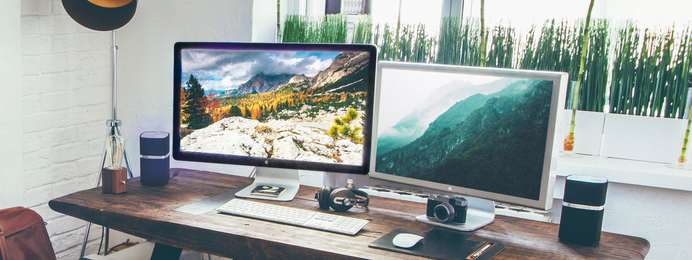
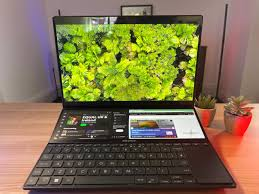
Connecting an external monitor to your laptop can significantly improve how you work and play by expanding your screen space and enhancing visual quality. Unlike a laptop’s built-in display, an external monitor — especially one with higher resolution and larger size — offers more room for multitasking, complex projects, and immersive entertainment, allowing you to view multiple windows side by side or enjoy media with greater clarity and detail.
Additionally, adding a secondary display can improve ergonomics by letting you position screens at eye level, which helps reduce neck and eye strain during long sessions, whether you’re working from home, editing videos, or gaming.
Tips for Maximizing Your Dual-Monitor Setup
1. Use Software Tools
Leverage built-in tools like Windows Snap Assist or macOS Mission Control to organize your windows efficiently across multiple screens. For advanced management, third-party apps like DisplayFusion (Windows) or BetterTouchTool (macOS) can add powerful customization and automate window placement.
2. Customize Display Settings
Personalize each display with separate wallpapers, taskbar placement, and scaling options to create a tailored workspace environment. Setting your primary display and consistent color calibration ensures a smooth and comfortable workflow.
3. Maintain Cleanliness and Organization
Organize cables with clips or sleeves to keep your desk tidy and prevent tangling. Maintaining a clutter-free workspace helps improve focus and reduces distractions. Regular cleaning of your monitor screens enhances clarity and extends device lifespan.
4. Explore Advanced Features
Modern monitors often include Picture-in-Picture (PiP) and Picture-by-Picture (PbP) modes that allow displaying input from multiple devices simultaneously — ideal for multitasking across different sources such as laptops, consoles, or desktops.
Conclusion
Integrating an external monitor into your laptop setup can revolutionize your productivity, comfort, and entertainment quality. By selecting the right monitor and fine-tuning your setup, you can enjoy a seamless, efficient, and pleasant computing experience. Whether you’re working professionally, gaming, or casually browsing, a dual-monitor setup is a worthwhile investment that unlocks new possibilities.
Interested in learning more about Do you know how to download Shaders for Minecraft?? Visit our Technology category for detailed guides and tips.
FAQs
Yes, as long as your laptop is functional and can boot up, you can connect an external monitor and set it as the primary display in your settings to bypass the broken laptop screen.
While an external monitor won’t boost your laptop’s internal performance, it enhances your productivity and workflow. Note that using very high resolutions or refresh rates may put additional strain on your laptop’s graphics hardware.
An external monitor adds more screen space, while a docking station broadens your laptop’s connectivity options, allowing multiple peripherals such as additional monitors, keyboards, mice, and network connections.
Curved monitors can provide a more immersive experience, especially for gaming and widescreen work. However, they are typically more expensive and their benefits become more noticeable on larger screens.
Full HD (1920×1080) remains a popular, affordable choice compatible with most laptops. For sharper images and professional work, 1440p (QHD) or 4K UHD monitors are excellent options, provided your laptop can support the resolution.