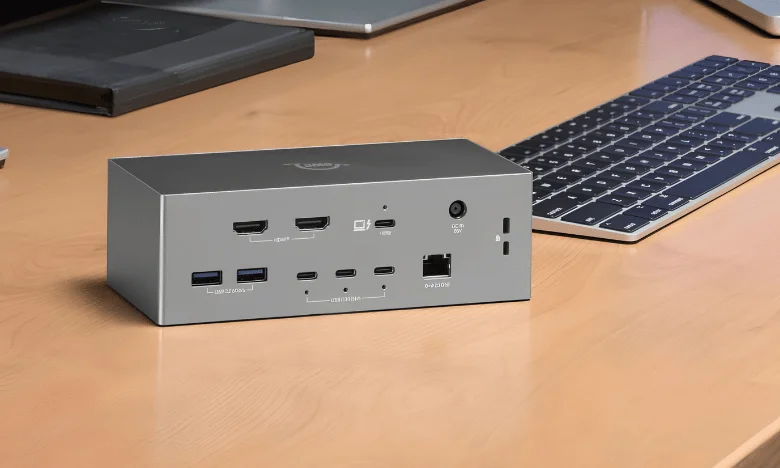
USB 3.2 Gen 2 is a high-speed USB standard with a maximum signaling rate of 10Gbps. You may find it on desktops, laptops, external SSDs, docks, and other modern devices. The name can seem confusing because USB standards have been renamed several times.
The important point is simple: USB 3.2 Gen 2 describes data speed rather than connector shape. It can work through compatible USB-A or USB-C connections. Your port, cable, and connected device must all support 10Gbps to reach that maximum rate.
Quick answer: USB 3.2 Gen 2 supports data signaling at up to 10Gbps, or twice the rate of 5Gbps USB connections. It was previously called USB 3.1 Gen 2. Actual file-transfer performance is lower, and the slowest component in your connection determines the final speed.
USB 3.2 Gen 2 at a Glance
| Feature | What You Need to Know |
|---|---|
| Maximum signaling rate | 10Gbps |
| Approximate raw byte rate | 1,250MB/s before protocol overhead |
| Previous name | USB 3.1 Gen 2 |
| Common modern speed label | USB 10Gbps |
| Connector options | USB-A and USB-C on compatible hardware |
| Backward compatibility | Yes. |
| Main use cases | External SSDs, docks, fast storage, cameras, and large file transfers |
| Required for full speed | 10Gbps host, cable, and peripheral |
The 10Gbps figure is a signaling rate rather than a guaranteed file-copy speed. Storage performance also depends on the drive, controller, operating system, workload, and other hardware. Real transfer rates vary with the host and file workload.
What Does USB 3.2 Gen 2 Mean?
The naming becomes easier once you separate the USB version from the physical connector. The standard identifies a 10 Gbps data-transfer capability. USB-C, meanwhile, describes the shape and design of a connector.
That difference matters when you shop for a laptop, motherboard, dock, or storage drive. A USB-C port does not automatically guarantee 10Gbps transfers. It may support a slower data rate despite looking identical from the outside.
USB-IF guidance also separates data performance from charging and other USB features. A 10Gbps label does not automatically promise a specific charging wattage. It also does not automatically confirm DisplayPort video support.
For hardware upgrades, similar naming problems appear with storage standards. TechroLab’s M.2 guide explains why a physical form factor alone cannot determine performance or compatibility. TechroLab M.2 SSD compatibility guide
How Fast Is USB 3.2 Gen 2?
The standard provides a theoretical signaling rate of 10 gigabits per second. Dividing that figure by eight gives a raw maximum of 1,250 megabytes per second. Protocol overhead means normal file transfers will not maintain that full theoretical number.
Roughly 900MB/s is a representative real-world figure for this speed class. Your own results may be higher or lower depending on your hardware. A slower SSD, cable, hub, or host controller can become the limiting factor.
This makes 10Gbps connectivity particularly useful for external solid-state storage. Large photo libraries, video projects, backups, and game files can move considerably faster than over older 5 Gbps connections. Low-bandwidth devices such as keyboards or mice receive little practical benefit.
USB 3.2 Gen 2 vs. Gen 1 vs. Gen 2×2
The three names represent different performance levels within the USB 3.x family. Looking at the stated gigabit rate is usually easier than memorizing every generation label. USB-IF itself has encouraged clearer speed-based consumer messaging.
| Standard | Maximum signaling rate | Common equivalent |
|---|---|---|
| USB 3.2 Gen 1 | 5Gbps | USB 5Gbps |
| USB 3.2 Gen 2 | 10Gbps | USB 10Gbps |
| USB 3.2 Gen 2×2 | 20Gbps | USB 20 Gbps |
The “2×2” version deserves special attention because it is not another name for ordinary Gen 2. It combines two 10Gbps lanes for a total signaling rate of 20Gbps. That mode requires suitable USB-C hardware.
Ordinary 10Gbps operation can appear through either compatible Type-A or Type-C ports. This distinction can prevent unnecessary upgrades when shopping for accessories. Checking the printed speed is safer than relying on connector appearance.
Is USB 3.1 Gen 2 the Same Thing?
Yes, USB 3.1 Gen 2 and the later 10Gbps designation refer to the same performance class. The specification was renamed when the USB 3.x family was reorganized. Products using the older name can still provide the same maximum signaling rate.
Older packaging therefore should not automatically make a cable or device slower. Check the stated 10Gbps capability instead of focusing only on the generation number. This approach is also useful when comparing older accessories with newer listings.
The official USB organization lists 5Gbps, 10Gbps, and 20Gbps performance tiers within this specification family.
Does USB-C Automatically Mean 10 Gbps?
No. USB-C describes the connector, while the supported USB specification determines data performance. Two ports can look identical while offering different transfer rates.
One USB-C port might support only basic USB data. Another could provide 10Gbps data, charging, and display output. A higher-end connection may instead use USB4 or Thunderbolt.
This issue becomes especially important with graphics docks and high-bandwidth accessories. TechroLab’s external GPU guide explains why a USB-C connector alone does not prove eGPU compatibility. TechroLab external GPU compatibility guide
What Cable Do You Need for 10Gbps?
Choose a cable that explicitly lists 10Gbps or faster data support. Do not assume every USB-C cable can carry high-speed data. Some cables primarily target charging and may support much slower transfers.
The computer’s port also needs matching 10Gbps support. Your connected SSD, dock, or other peripheral must support it too. The connection falls back to the slowest capability in that chain.
For example, a 10Gbps external SSD connected with a 5Gbps cable cannot use its full interface bandwidth. Replacing the cable may solve that bottleneck without replacing the storage device. The same principle applies when a fast cable connects to a slower computer port.
What Devices Benefit Most?
Fast external storage is one of the clearest reasons to use a 10Gbps connection. Portable SSDs can move large files quickly when both sides support sufficient bandwidth. This can shorten backup and media-transfer times.
Content creators can also benefit when transferring photos or video from compatible devices. Docks and hubs may use higher bandwidth to serve several peripherals. Exact performance still depends on how the hub divides its available connection.
Keyboards, mice, printers, and basic controllers usually do not need this bandwidth. A keyboard problem, for example, is more likely related to connectivity, power, drivers, or hardware. TechroLab’s keyboard troubleshooting guide covers those checks separately. TechroLab keyboard troubleshooting guide
How to Check Whether Your PC Supports 10Gbps
Start with the specifications for your exact laptop, desktop, or motherboard model. Manufacturers often list USB capabilities beside each physical port. Look specifically for “10Gbps,” rather than relying on color or connector shape.
You can also check the manual for the motherboard or computer. Desktop boards often include several ports with different capabilities on the same system. Front-panel connectors may have different limits from rear motherboard ports.
Firmware can also help when diagnosing whether connected storage appears correctly. TechroLab’s BIOS access guide covers several ways to enter firmware settings on Windows PCs. TechroLab guide to opening BIOS
Before buying a new accessory, check these three items:
- The computer port supports at least 10Gbps.
- The USB cable supports at least 10 Gbps data.
- The peripheral supports the same performance level.
Meeting all three conditions prevents the most common speed mismatch. A faster component can still work with slower compatible hardware. It simply operates at the lower shared speed.
Is 10Gbps USB Still Worth Using in 2026?
For many everyday computers and external SSDs, 10Gbps remains a useful performance level. It offers substantially more bandwidth than older 5Gbps USB connections. It can also be cheaper and more widely available than higher-bandwidth alternatives.
You do not need the newest interface for every accessory. Buying more bandwidth than your storage device can use provides little immediate benefit. Compatibility and workload should guide the decision.
USB4 becomes more attractive for users needing higher bandwidth or broader advanced features. High-performance storage and docking setups may also benefit from 20Gbps or faster connections. For common portable drives and peripherals, 10Gbps remains practical.
FAQ
What speed is USB 3.2 Gen 2?
It supports a maximum signaling rate of 10Gbps. That equals 1,250MB/s before protocol overhead and hardware limitations. Real file-transfer speeds are normally lower.
Is it the same as USB 3.1 Gen 2?
Yes. The older designation and the newer name both describe the 10Gbps performance tier. The terminology changed, but the underlying speed class did not suddenly become faster.
Is USB 3.2 Gen 2 twice as fast as Gen 1?
Its theoretical signaling rate is twice as high. Gen 1 supports 5Gbps, while Gen 2 supports 10Gbps. Real applications may show a smaller difference because connected hardware can limit performance.
Can a USB-A port support 10Gbps?
Yes, compatible USB-A hardware can support the 10Gbps mode. USB-C is not required for ordinary 10Gbps operation. The port specifications should state its supported data rate.
Will a 10Gbps device work in an older USB port?
Usually yes, because USB is designed for backward compatibility. The connection will operate at the fastest rate shared by the devices involved. A slower host or cable therefore reduces the available speed.
Does a 10Gbps USB-C port support video and fast charging?
Not necessarily. Data speed, USB Power Delivery, and video capabilities are separate specifications. Check the computer or device documentation for each feature before purchasing a dock or monitor.
The Bottom Line
The easiest way to understand modern USB is to focus on the advertised data rate. A 10Gbps connection offers useful bandwidth for portable SSDs, docks, cameras, and large file transfers. Connector shape alone cannot tell you whether that performance is available.
Check the host port, cable, and peripheral before spending money on an upgrade. All three must support the desired rate for the connection to reach it. That simple check avoids most USB compatibility and performance surprises.