An SRT file is a plain-text document that stores subtitles and their timing information. It tells a video player what text to display and when to display it. The format remains popular because it is simple, editable, and supported across many video platforms.
You can open these subtitle files with basic text editors or compatible media software. You can also create them manually without specialized software. Understanding their simple structure makes editing, converting, and troubleshooting subtitles much easier.
SRT Format at a Glance
| Feature | Details |
|---|---|
| Full name | SubRip Subtitle |
| File extension | .srt |
| File type | Plain text subtitle file |
| Main purpose | Store subtitle text and display timing |
| Time format | HH:MM:SS, mmm |
| Contains video or audio | No |
| Common encoding | UTF-8 |
| Editable with | Notepad, TextEdit, subtitle editors |
| Common uses | Captions, translations, video subtitles |
| Typical alternatives | WebVTT, TTML, ASS, SUB |
Quick Answer
An SRT subtitle document contains numbered caption blocks, start and end times, and the words shown on screen. It contains no video or audio data. You can read or edit one with a text editor, then load or upload it alongside the matching video.
Key Takeaways
- SubRip subtitles use plain text rather than a complex media container.
- Each caption needs a sequence number, timing line, subtitle text, and separator.
- The timing format typically uses a comma to separate hours, minutes, seconds, and milliseconds.
- You can create and edit subtitles with ordinary text-editing software.
- UTF-8 is a safe encoding choice for modern video platforms.
- Broken timestamps and missing blank lines commonly cause playback problems.
- The subtitle document works alongside the video rather than containing it.
What Is an SRT File and What Does It Contain?
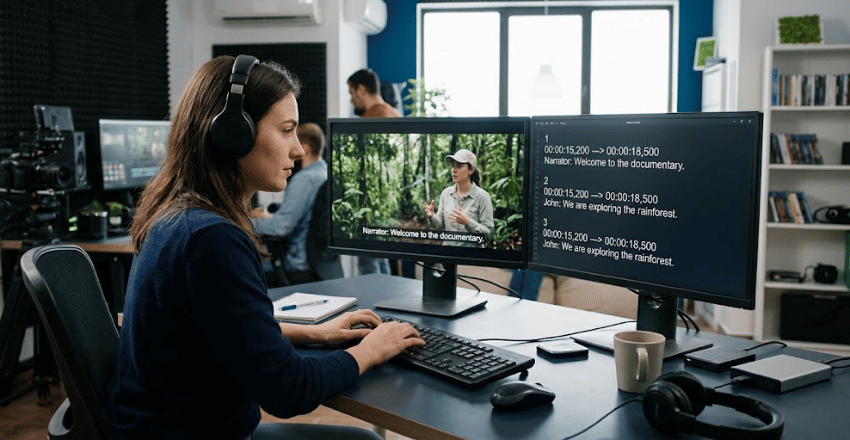
The format stores timed subtitle cues in a readable text document. Each cue identifies when particular words should appear and disappear. The Library of Congress digital formats documentation describes SubRip as a text-based format for subtitles and timing information.
A subtitle document does not contain images, video streams, or recorded audio. That distinction matters when you transfer or back up your media. Deleting the video leaves you with subtitle text, not a playable copy of the original footage.
The simple design also makes SubRip portable between many editing workflows. Creators can move caption text without exporting an entire video project. That helps translators, editors, and video producers exchange timed dialogue.
Techrolab readers interested in file formats may also find the PNG format guide useful. PNG solves a different problem, but both formats show why file extensions matter. Knowing what a format stores prevents mistakes when choosing tools or converting files.
What Does the Subtitle Structure Look Like?
Every subtitle cue follows a predictable sequence. It begins with a number and then gives the display timing. The caption text follows on the next line or lines.
A basic example looks like this:
1 00:00:02,000 –> 00:00:05,500 Welcome to the video.
2 00:00:06,000 –> 00:00:09,200 Today we will explain subtitle files.
The first line identifies the cue’s sequence position. The second line provides its start and end timestamps. The remaining line contains the text the viewer sees.
A blank line normally separates one cue from the next. That spacing helps subtitle software interpret each block correctly. Removing separators can cause some programs to combine cues or reject the document.
Understanding the Timestamp
SubRip commonly represents time as HH:MM:SS, mmm. The final three digits represent milliseconds, not video frames. A comma separates those milliseconds from the seconds.
For example, 00:01:12,500 means one minute, twelve seconds, and five hundred milliseconds. This timing method stays independent of a video’s frame rate. It works well when subtitle timing matches the video’s actual duration.
WebVTT looks similar but commonly uses a period before milliseconds. Mixing formats can cause validation or playback issues. Check the required subtitle format before changing punctuation in timestamps.
How to Open Subtitle Files on Windows or Mac
Opening the document for reading does not require professional editing software. On Windows, you can use Notepad or another plain-text editor. On macOS, TextEdit can display the same content when working in plain-text mode.
You can also load the subtitle track through compatible media or video software. That approach lets you check timing while watching the associated video. It is more useful than plain text when you need to identify captions appearing too early.
If double-clicking opens an unexpected program, use your operating system’s Open With option. Choose a plain-text editor when you only need to inspect the content. Keep the original extension when saving changes so compatible applications still recognize it.
How to Create an SRT Subtitle File Manually
Creating one manually is practical for shorter videos or small corrections. You need a plain-text editor and accurate timestamps from the video. Follow the same pattern for every subtitle cue.
- Open a plain-text editor. Use Notepad, TextEdit in plain-text mode, or another simple editor.
- Enter the first sequence number. Start with 1 and increase the number for each new cue.
- Add the start and end times. Follow the HH:MM:SS, mmm –> HH:MM:SS, mmm structure.
- Type the subtitle text. Keep each caption short enough for comfortable reading.
- Insert a blank line. This separates the current cue from the next cue.
- Repeat the structure. Continue until every spoken section has a timed caption.
- Save the document correctly. Give it the .srt extension and use UTF-8 encoding when available.
- Test it with the video. Watch for incorrect timing, missing text, or overlapping cues.
YouTube officially supports basic SubRip caption uploads and specifies plain UTF-8 for them. Its help documentation also confirms that captions can be uploaded through YouTube Studio.
Manual creation works best when the video is short or the transcript already exists. Longer projects usually benefit from dedicated subtitle or transcription software. Those tools reduce the repetitive work of entering and adjusting hundreds of timestamps.
Video creators should treat captions as part of their complete production workflow. Camera choice, editing, audio, and captions all affect the finished viewer experience. Techrolab’s mirrorless versus DSLR guide provides related guidance for creators choosing video-capable camera equipment.
How to Add Subtitles to YouTube
YouTube Studio provides several ways to add captions to a published or uploaded video. You can upload a timed file, enter captions manually, or use supported synchronization features. Availability varies by the video’s language and existing caption track.
For an existing timed document, open the video’s subtitle controls inside YouTube Studio. Choose the option to upload a caption file and select the correct language. Review the captions after processing before publishing them.
YouTube says basic SubRip uploads don’t recognize styling information. This means elaborate visual formatting may not survive the upload process. Use the platform’s supported caption features when positioning or styling matters.
SRT vs VTT: What Is the Difference?
SubRip and WebVTT both store timed text for video. Their syntax looks similar, but they are not interchangeable in every workflow. WebVTT was designed specifically around web-based timed text.
| Feature | SubRip | WebVTT |
|---|---|---|
| Common extension | .srt | .vtt |
| Plain text | Yes | Yes |
| Timed captions | Yes | Yes |
| Millisecond separator | Usually comma | Period |
| Web-oriented features | Limited | Stronger |
| Styling and positioning | Limited and inconsistent | Broader support |
| Typical use | Video players and platforms | HTML5 web video |
Web developers often choose WebVTT when building browser-based video experiences. General video workflows commonly accept SubRip because of its wide compatibility. Your destination platform should determine which format you choose.
Converting between subtitle formats is usually straightforward because both are text-based. Still, conversion tools can introduce timing or encoding errors. Always check the converted version against the original video before publishing it.
Common Problems and How to Fix Them
Many subtitle problems come from small formatting mistakes rather than damaged media. The text may look correct, but one timestamp or separator can break playback. Systematically checking the structure is faster than rebuilding the document.
Subtitles Do Not Appear
First, confirm that the player has the subtitle track loaded or enabled. Then check whether the subtitle document matches the intended video version. Different cuts of the same video may have different durations.
Also inspect the earliest timestamp for obvious formatting errors. A period may have replaced the expected comma before milliseconds. Missing arrows or malformed time values can also prevent parsing.
Captions Display at the Wrong Time
Incorrect timing usually means the subtitles were made for another version of the video. A few seconds of consistent delay may be fixable with a timing offset. Increasing drift throughout the video can indicate a larger synchronization problem.
Dedicated subtitle editors can shift many cues together. They can also help correct timing gradually across a long video. Always check the beginning, middle, and end after making timing adjustments.
Strange Symbols Replace Normal Letters
Unreadable characters often point to text-encoding problems. Saving the document as UTF-8 solves many modern compatibility issues. YouTube specifically requires plain UTF-8 for basic SubRip uploads.
Keep an untouched backup before changing encoding or running conversions. Small text documents take up little space, so keeping originals is easy. Techrolab’s file archiving software guide explains broader considerations for managing important files over time.
The File Opens as Ordinary Text
That behavior is normal because subtitle documents are plain text. The file becomes useful as captions when compatible software loads it with video. Opening it in Notepad does not mean the file is broken.
Check the filename if your computer hides extensions by default. A document accidentally saved as captions.srt.txt may not be recognized as subtitles. Enable visible file extensions when troubleshooting.
Best Practices for Cleaner Subtitles
Good subtitles require more than correct syntax. Viewers need enough time to read each caption without missing the video. Clear wording and sensible breaks can improve comprehension.
Avoid packing long paragraphs into one timed cue. Split speech where the phrasing naturally changes or pauses. Then watch the video to confirm each caption remains on screen long enough.
Use consistent punctuation, speaker labels, and descriptions for meaningful sounds when appropriate. Captions such as [music] or [laughter] can provide useful context. YouTube also recommends brackets for background sounds within transcript workflows.
Frequently Asked Questions
What program opens an SRT file?
You can open an SRT file with ordinary plain-text software such as Notepad or TextEdit. Compatible media players and subtitle editors can also load these documents. A subtitle editor is more useful when you need synchronized video preview and timing controls.
Does a subtitle document contain the video?
No, it only contains timed text and related cue information. The actual video remains in a separate media file. You therefore need both components when using external subtitle tracks.
Can I edit subtitles without special software?
Yes, you can edit the text and timestamps in a plain-text editor. Keep the correct cue structure and filename extension when saving changes. Back up your file before making large timing edits.
Why are my subtitles out of sync?
The subtitle track may have been created for a different video edit or release. Timing can also shift after you trim the video, insert intros, or convert frame rates. Compare several points across the video before deciding how much adjustment is needed.
Should I use SRT or VTT?
Use the format required by your target player, website, or publishing platform. SubRip works well across broad video workflows, while WebVTT suits browser-based video applications. Check platform documentation before converting existing subtitles.
Final Tips for Working With Subtitle Files
SubRip remains useful because it keeps subtitle data simple and readable. You can inspect every caption and timestamp without opening a complicated project file. That simplicity also makes troubleshooting easier when something goes wrong.
When captions fail, start by checking the extension, encoding, timestamps, and blank lines. Then test the track against the exact video version you plan to publish. A brief playback review can catch errors that are difficult to notice in text alone.
For creators, subtitles should be treated as part of the finished video rather than an afterthought. Accurate captions can make content easier to follow and available to more viewers. Build caption checking into your normal export and publishing process.