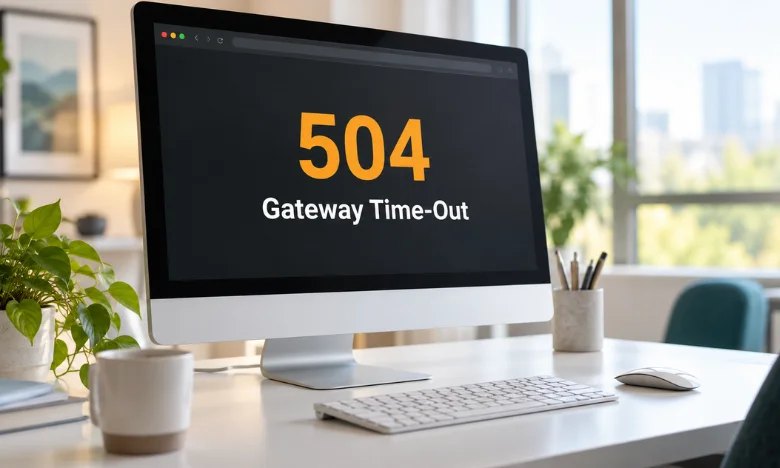
A 504 gateway time-out appears when one server waits too long for another server to respond. The problem usually involves a proxy, CDN, load balancer, or web server communicating with an upstream system. Visitors can try several simple fixes, but persistent errors usually require the website owner to take action.
Quick answer: A 504 error means a gateway or proxy did not receive an upstream response quickly enough. Visitors can refresh, disable a VPN, or try again later. Website owners should inspect server logs, resource usage, databases, application workers, network connections, and timeout settings before increasing limits.
| Key point | What it means |
|---|---|
| Error type | HTTP 5xx server error |
| Main problem | An upstream server did not respond in time. |
| Common causes | Slow applications, database delays, overloaded servers, network issues |
| Visitor responsibility | Usually limited |
| Site-owner priority | Find which server or service stopped responding. |
| Common platforms | Nginx, Apache, Cloudflare, AWS, WordPress |
| Permanent fix | Remove the underlying performance or connectivity problem |
Key Takeaways
- A 504 usually points to a server-side communication delay.
- Refreshing can help when the problem is temporary.
- Slow database queries and overloaded workers commonly cause it.
- Proxy timeout changes should follow diagnosis, not replace it.
- Repeated errors can hurt conversions, crawling, and user trust.
- Server and application logs provide the strongest evidence for troubleshooting.
What Does a 504 Gateway Timeout Mean?
HTTP 504 belongs to the 5xx group of server response codes. RFC 9110 defines it as a gateway failing to receive a timely upstream response. The gateway may be Nginx, a CDN, a reverse proxy, or a load balancer. Imagine that a browser connects to a proxy before reaching the application server. The proxy forwards the request and waits for the application to answer.
When that wait exceeds its configured limit, the proxy returns the error instead. This distinction matters because the front-facing server may still be operating correctly. The delayed component could be PHP, a database, an API, or another internal service. Finding that slow component is more useful than restarting every service.
Techrolab’s broader explanation of cloud computing infrastructure can provide useful background on hosted applications and cloud services. Modern websites often rely on several connected systems instead of one physical machine. That dependency chain creates several possible timeout points.
What Causes a 504 Gateway Timeout?
Slow application processing is a frequent cause. A resource-heavy report, export, search, or data-processing request may exceed a proxy’s waiting period. Poorly performing code can produce the same result even under normal traffic. Database trouble can produce similar symptoms. Missing indexes, locked tables, exhausted connections, or expensive queries can delay an application’s response.
Other pages may remain available while one database-heavy route repeatedly fails. Infrastructure load is another common source. CPU pressure, memory exhaustion, worker saturation, or sudden traffic spikes can delay backend processing. A request may sit in a queue until the gateway stops waiting.
External services can also create delays. Payment providers, shipping services, APIs, authentication systems, or remote databases may respond too slowly. The website can then inherit another provider’s performance problem.
| Cause | Common sign | First place to check |
|---|---|---|
| Slow application | One complex page fails. | Application logs |
| Database delay | Data-heavy routes fail. | Slow-query logs |
| High server load | Errors rise with traffic. | CPU, RAM, workers |
| External API delay | Specific feature fails. | API timing logs |
| Network problem | Errors appear unpredictably. | Firewall and routing |
| Short timeout | Failure occurs after a consistent interval. | Proxy configuration |
How to Fix a 504 Gateway Time-Out
The correct fix depends on whether you are visiting the website or managing it. Visitors have little control over genuine server failures. Administrators can inspect each part of the request path and identify the slow component.
Fixes Visitors Can Try
Try these steps before assuming your computer has a serious problem:
- Refresh the page once. A temporary traffic spike may have already cleared.
- Wait several minutes. The site owner may be resolving a server problem.
- Try another connection. This can identify an unusual local network issue.
- Disable a VPN or proxy temporarily. Custom routing can occasionally affect connectivity.
- Check whether other pages work. One failing route may indicate an application-specific problem.
Repeated refreshing is unlikely to solve a persistent upstream failure. MDN notes that server administrators normally need to investigate continuing errors. Local network settings matter mainly when the service works correctly for other users.
Fixes Website Owners Should Try
Site owners should troubleshoot based on evidence rather than guesses. Record the failing URL, request time, and approximate delay before the message appears. Those details make server logs much easier to interpret.
Follow this order:
- Check web-server and application logs. Look for upstream timeout messages around the failed request.
- Check CPU and memory usage. Resource saturation can delay every backend process.
- Inspect application workers. PHP-FPM, Node.js, Python, or other workers may be exhausted.
- Review slow database queries. Look for locks, full scans, and connection-pool limits.
- Test external dependencies. Measure API, database, storage, and authentication response times.
- Test the upstream directly. Bypass the proxy when possible and compare response times.
- Review timeout configuration. Increase limits only when the request legitimately needs more time.
- Move long jobs into queues. Reports, imports, and exports often work better asynchronously.
A repeatable failure at the same interval can be a key clue. It may indicate that a configured timer consistently expires before the application finishes. More frequent random failures often suggest changing load or dependency performance. Techrolab’s business website guide also highlights the importance of reliable hosting. Hosting quality matters most when applications need predictable server resources. Capacity problems can surface quickly as traffic grows.
Fixing the Error on Nginx
Nginx commonly sits between visitors and an application server. Its proxy_read_timeout controls how long Nginx waits between reads from a proxied server. Current technical references commonly document a 60-second default for this directive. Administrators may increase that value for legitimate long-running requests. First, test the Nginx configuration and reload the service after making changes.
Increasing a timer won’t fix slow database queries or overloaded application workers. A better approach starts with logs and request timing. Identify which route exceeds the current threshold and determine why. Change the timeout only when the workload is expected to take longer.
What About Cloudflare?
Cloudflare can sit between visitors and the origin server. Its documentation recommends identifying whether the response originates from Cloudflare or the origin infrastructure. That distinction determines which system needs investigation. Do not assume every Cloudflare timeout requires a CDN setting change. The origin may be overloaded, unreachable, or waiting on another backend service. Cloudflare can expose a problem that already exists behind the CDN.
If your site uses distributed infrastructure, understanding physical server organization can also help with capacity planning. Techrolab’s server rack guide covers cooling, power, equipment capacity, and hardware organization. Those factors still matter for businesses running on-premises infrastructure.
How WordPress Sites Can Develop Gateway Timeouts
WordPress sites can experience gateway errors when PHP takes too long to process requests. Resource-heavy plugins, backups, imports, database queries, and WooCommerce operations can increase request duration. A poorly performing plugin may affect only certain pages. Start by checking PHP and web server logs. Then test recent plugin or theme changes in a safe staging environment.
Base database optimization on query monitoring rather than broad cleanup actions. Hosting limits also matter for busy WordPress installations. Limited PHP workers or insufficient memory can create queues during traffic peaks. Upgrading resources helps only when measurements confirm capacity is the bottleneck.
502 vs. 503 vs. 504 Errors
These server errors can look similar to visitors. Their meanings differ enough to change how you troubleshoot. Treating every 5xx response identically can waste valuable diagnostic time.
| Code | Meaning | Typical troubleshooting focus |
|---|---|---|
| 502 | Gateway received an invalid upstream response. | Backend connection or response |
| 503 | Service is unavailable. | Capacity, maintenance, availability |
| 504 | Gateway waited too long. | Upstream speed or timeout |
| 408 | The server timed out waiting for the client. | Client request transmission |
A 502 often suggests that an upstream response was unusable or unavailable. A 504 focuses more directly on waiting too long for an upstream response. That difference helps narrow the first troubleshooting steps.
Can a 504 Error Hurt SEO?
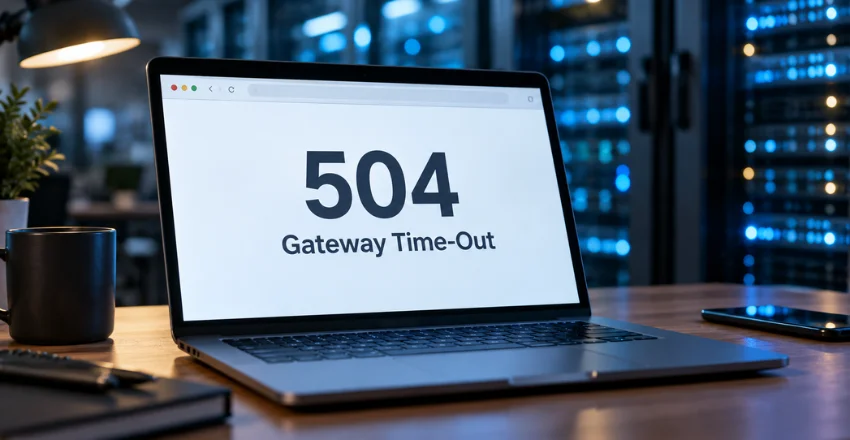
A brief outage will not automatically destroy search rankings. Persistent server errors create a larger problem because search crawlers may repeatedly fail to access pages. Visitors may also leave before the content loads. Long-term reliability should therefore be treated as part of technical SEO. Track uptime, application response times, and server capacity before failures become frequent.
Monitoring also gives administrators evidence of when performance began to deteriorate. Website performance includes more than server response codes. Large assets can also increase page weight and infrastructure demand. Techrolab’s guide to PNG image usage and optimization explains why format choice can affect web file sizes.
How to Prevent Future Gateway Timeout Errors
Monitoring should cover both infrastructure and application behavior. Measure response time, CPU use, memory, worker utilization, database performance, and important third-party dependencies. Alerts should trigger before normal requests consistently approach timeout limits.
Long-running work should also be designed carefully. Large exports, video processing, data imports, and complex reports may not belong inside one browser request. Queue-based processing can return control to the user while the server completes the task separately.
Finally, review changes after every deployment. New code, plugins, queries, integrations, and infrastructure settings can introduce performance regressions. Comparing current performance with a known baseline makes those changes easier to identify.
Frequently Asked Questions
What does a 504 gateway time-out mean?
It means a gateway or proxy waited too long for an upstream server. The gateway returned an HTTP server error after its waiting period expired. The underlying service may still be running but responding too slowly.
Is a 504 error my fault?
Usually, it is not a visitor-side problem. A genuine gateway timeout usually requires the website owner or hosting provider to investigate. Visitors can still test another network or disable a custom proxy when other people can access the site.
Will clearing my browser cache fix the error?
Clearing the cache is unlikely to repair a persistent server-side timeout. Refreshing may help if the server problem was temporary and has already ended. Repeated failures indicate that the website infrastructure needs attention.
Should I increase server timeout settings?
Increase timeout values only after identifying why requests need more time. Higher values can help legitimate long-running processes, but they may hide inefficient code or database problems. Fixing the slow upstream usually provides a better long-term result.
Final Steps for a Reliable Fix
Gateway errors become easier to solve when you follow the request from front to back. Start with logs, identify the slow hop, measure resource usage, and inspect important dependencies. Change timeout settings only after confirming that the workload genuinely requires extra processing time.
For visitors, the practical response is much simpler. Refresh once, check your connection, and return later if the website remains unavailable. Persistent errors belong with the site administrator, hosting company, or infrastructure team.