A keyboard not working can stop work, gaming, school, or even a simple Windows login. Start by checking power, cables, USB ports, batteries, and wireless connections before changing software. If those checks don’t help, settings, drivers, Bluetooth pairing, dirt, or damaged hardware may be the cause.
Quick answer: Start by restarting the computer and reconnecting the input device. Try another USB port or fresh batteries, then check Bluetooth and Windows accessibility settings. Next, update or reinstall the device driver, or reconnect it, then separate a software problem from hardware failure.
Quick Diagnosis Table
| Symptom | Likely cause | First action |
| No keys respond | Power, connection, driver | Reconnect and restart |
| Wireless model is dead | Battery or pairing | Charge it and reconnect |
| Only several keys fail | Dirt or physical damage | Clean and test the affected keys |
| Keystrokes are delayed | Filter Keys or wireless issue | Check Accessibility settings |
| Wrong characters appear | Incorrect input layout | Check language and layout |
| USB model disconnects | Port, cable, or hub | Connect directly to another port |
| Works on another computer | Software or port issue | Check drivers and settings |
| Fails on another computer | Hardware fault | Repair or Repaire the device |
What You’ll Need Before Troubleshooting
Keep a mouse or touchpad available while working through these fixes. Windows also provides an On-Screen Keyboard under Settings > Accessibility > Keyboard. Microsoft says this tool can enter text using a mouse or another pointing device.
An extra USB input device is useful for testing laptop problems. You may also need fresh batteries for a wireless model. Keep the manufacturer’s charging cable nearby if the device has an internal battery.
Keyboard Not Working? Follow these steps in Order

1. Restart the Computer
If your Keyboard Not Working issue appears suddenly, restart the computer before changing drivers or advanced settings. A restart reloads Windows services, device drivers, and background processes. It can clear temporary input problems without changing your files.
Choose Restart rather than closing a laptop lid and reopening it. Test several letters, numbers, and modifier keys after Windows loads. Continue if the problem remains.
2. Check the Cable, USB Port, or Power
For a wired device, disconnect it and reconnect it. After Windows loads, test it. Try another port directly on the computer, not a hub. Microsoft recommends both steps when troubleshooting Windows input devices.
Inspect the cable and connector for visible damage. Check batteries or charging status on wireless hardware. These simple tests should come before reinstalling software.
Desktop users can also review Techrolab’s coverage of Gigabyte motherboard connectivity and USB features when checking PC ports. Motherboard USB: These sections can help with a failing front-panel port. Direct motherboard ports are especially useful during diagnosis.
3. Check the Wireless Receiver or Bluetooth Connection
A wireless model may stop responding because its receiver lost communication. Remove a USB receiver, wait several seconds, and reconnect it directly. Microsoft also recommends checking battery power and resetting supported wireless devices.
For Bluetooth hardware, open your computer’s Bluetooth settings and confirm the device remains connected. Remove and pair it again if necessary. Keep the device close to the computer during this test.
Apple gives similar advice for Magic accessories. Apple recommends checking power, Bluetooth, charging status, and pairing; re-pair ifrepair.
Mac users can also see Techrolab’s Mac Mini M2 connectivity overview for its USB and Bluetooth connection options. That information can help when choosing another connection for testing.
4. Test Another USB Port Without a Hub
USB hubs introduce another possible failure point. Disconnect the device from any monitor, extension, or unpowered hub. Connect it straight to the computer instead.
Test at least one other known-working USB port. Microsoft specifically recommends bypassing hubs while troubleshooting mouse and input problems. If another port works, the original port or hub needs further attention.
USB problems sometimes appear alongside other laptop power issues. Techrolab’s guide to a laptop that is not charging explains power resets and port inspection. Those checks can be useful when several laptop connections fail together.
5. Turn Off Filter Keys in Windows
Filter Keys changes how Windows responds to brief or repeated keystrokes. If enabled unintentionally, normal typing can feel delayed or unresponsive. Microsoft states that Filter Keys controls input sensitivity.
Use your mouse to open Settings > Accessibility > Keyboard. Find Filter Keys and turn it off for testing. Microsoft also documents holding the right Shift key for eight seconds as its accessibility shortcut.
Check Sticky Keys while you are on the same page. Sticky Keys usually affects shortcut behavior rather than stopping every key. Turning unintended accessibility options off can still resolve confusing input behavior.
6. Check the Language and Input Layout
A device can be physically healthy while producing unexpected characters. This often happens after the operating system switches to another input layout. Check the active language before assuming individual keys are broken.
In Windows 11, go to Settings> Time & language > Language & region. Review the installed language and its input options. Remove unwanted layouts if you repeatedly switch to them by accident.
On a Mac, review the configured input sources under the system’s Keyboard settings. Apple notes that unexpected key results can require checking related settings. Test letters and symbols again after selecting the correct layout.
7. Update or Reinstall Windows
Windows normally handles standard input drivers automatically. A damaged driver or incomplete update can still cause a device to disappear or stop responding. Microsoft recommends checking Windows Update and Device Manager for driver updates.
Use the On-Screen Keyboard if you cannot type. Open Device Manager, expand Keyboards, and locate the affected device. First, check for an updated driver through Windows.
If updating does not help, uninstall the affected device from Device Manager. Restart the computer afterward so Windows can detect the hardware again. Avoid downloading unknown driver packages from unofficial driver websites.
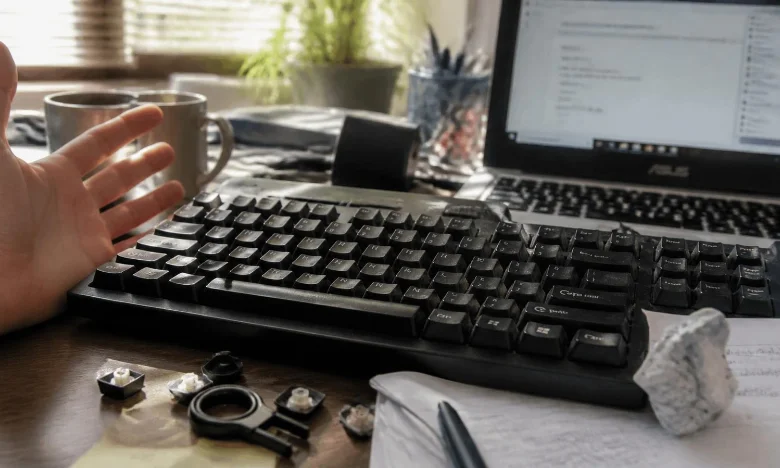
8. Clean Keys That Stick or Fail Individually
Dirt becomes more likely when only one key or a small group stops responding. Shut down the computer before cleaning a built-in laptop unit. Disconnect external devices before working around the keys.
Gently turn an external unit upside down to release loose debris. Use compressed air carefully around affected areas. Do not pour liquid cleaners directly onto electronics.
A recent liquid spill requires greater caution. Power down the computer and disconnect external power when safe. Persistent failures after a spill may require professional inspection.
9. Test the Device on Another Computer
Cross-testing is one of the fastest ways to separate hardware and software faults. Connect the external device to another compatible computer. Microsoft recommends this test when the hardware appears completely unresponsive.
If it works elsewhere, focus on the original computer’s ports, settings, drivers, or operating system. If it fails on another system too, hardware failure becomes more likely. This test prevents unnecessary Windows changes when the physical device is faulty.
Laptop owners can reverse the same test. Connect a known-working USB unit to the laptop. If the external unit works normally, the built-in assembly may need repair.
10. Whether Repair or Replacement Makes Sense
Physical damage becomes more likely after the earlier checks fail. Warning signs include broken connectors, liquid exposure, missing keys, and a device that fails on multiple computers. Repeated disconnects despite different ports can also indicate cable damage.
For a low-cost external model, replacement may be simpler than component repair. Laptop repairs and assemblies require more care because replacement procedures vary between models. Check warranty coverage before opening a laptop.
If several PC components behave strangely, start by investigating the broader hardware setup. Techrolab’s hardware coverage can help you understand motherboard ports and connectivity before assuming one peripheral caused the problem. A repair technician can then test the connector, controller, or internal assembly.
Wired vs. Wireless Troubleshooting
Wired devices mainly depend on the cable, connector, USB port, driver, and physical switches. Wireless models add batteries, receivers, Bluetooth pairing, radio interference, and charging. Start with the connection type before changing operating-system settings.
| Wired checks | Wireless checks |
| Inspect cable | Check battery level |
| Try another USB port | Reconnect receiver |
| Bypass USB hub | Pair Bluetooth again |
| Test another computer | Reduce wireless distance |
| Check Device Manager | Charge the device |
| Inspect connector | Test a wired connection when supported |
Wireless accessories can also compete with other devices for connection space around a computer. Techrolab’s gaming earbuds guide discusses Bluetooth and dedicated USB wireless connections. Understanding those connection types can make peripheral troubleshooting easier.
What If the Laptop Keyboard Does Not Work?
Start by connecting an external USB model to the laptop. If the external device works, Windows can still receive normal input. The problem may involve the built-in hardware, its internal connection, or device-specific software.
Check whether the built-in keys work before Windows starts, where your laptop provides a BIOS or firmware interface. Results there can offer another useful clue. Do not change unfamiliar firmware settings while testing.
A recent spill or impact changes the diagnosis. Software repairs carepairsx broken traces, connectors, or switches. Professional inspection is safer when you suspect physical damage
What If It Stops Working Only After Windows Starts?
A device that works during startup but fails inside Windows points more strongly toward software. Drivers, accessibility settings, background utilities, and updates deserve attention first. Test Safe Mode if ordinary troubleshooting does not isolate the cause.
Check Windows Update before installing third-party driver tools. Microsoft recommends using Windows Update or Deshould be checkedsupported driver updatesstandard restore point or bacn’tbefore making larger system changes.
Get Back to Typing Without Guesswork
You can narrow most input failures by testing one layer at a time. Start with power and connections, then check settings and drivers. Cross-testing on another device or computer can give you a strong hardware clue.
Avoid replacing parts before completing the basic tests. A port change, battery replacement, pairing reset, or accessibility adjustment may solve the problem. When the same hardware fails across multiple computers, repair or repairement becomes the more sensible next step.
Frequently Asked Questions
Why is my keyboard not working even though it has power?
Power does not confirm that data is reaching the computer. The USB connection, receiver, Bluetooth pairing, driver, or operating-system setting may still fail. Test another port and another computer before assuming the powered device is healthy.
Why are only some keys not responding?
Localized failures often point toward debris, wear, physical damage, or a spill. Test the affected keys in several applications first. If the same keys fail everywhere, inspect and clean the hardware carefully.
How can I type if none of my physical keys work?
Windows includes an On-Screen Keyboard that works with a mouse or another pointing device. Open Settings > Accessibility > Keyboard and enable the on-screen option. Microsoft also makes it available from the Windows sign-in screen.
Can Filter Keys make typing seem broken?
Yes. Filter Keys can tell Windows to ignore brief or repeated keystrokes. Microsoft lists the feature under Windows keyboard accessibility settings.
Should I reinstall drivers immediately?
No. Check power, connections, batteries, ports, pairing, and accessibility settings first. Driver work makes more sense after simpler reversible checks fail.