M.2 Explained: A Complete Guide to Sizes, NVMe vs. SATA, PCIe Generations, Compatibility, Installation & PS5 Requirements

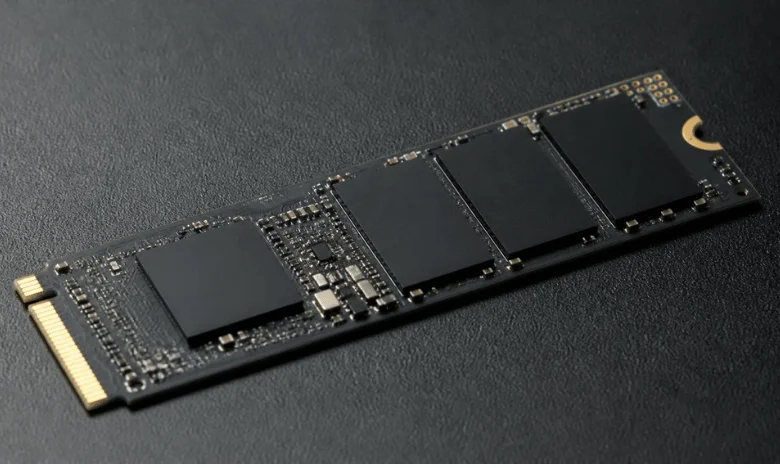
An M.2 drive is a compact internal module commonly used for SSD storage, but the label tells you its physical form more than its speed. A drive can use SATA or PCIe with NVMe, and the slot in your PC must support the same interface, keying, and length. For most modern desktop and laptop upgrades, a 2280 PCIe NVMe SSD is common, but checking your device manual comes first.
| Question | Quick answer |
|---|---|
| What does the term describe? | A family of compact internal module form factors |
| Common SSD sizes | 2230, 2242, 2260, 2280, and 22110 |
| Storage interfaces | SATA or PCIe, depending on the drive and host |
| Common modern protocol | NVMe over PCIe |
| Common PC size | 2280, or 22 mm wide by 80 mm long |
| What determines compatibility? | Protocol, keying, length, PCIe support, and physical clearance |
| PS5 requirements | PCIe Gen4 x4 NVMe, Key M, supported size, and suitable heat dissipation |
Quick answer: This is a compact form-factor standard for internal expansion cards. In storage, the same physical family can carry SATA or PCIe/NVMe drives, so shape alone does not determine speed. Before buying, match the slot’s supported protocol, PCIe generation, keying, physical length, and cooling requirements to your device.
Key takeaways: Think of the physical shape, storage protocol, and PCIe generation as separate specifications. A drive that physically fits can still be electrically incompatible, while a newer PCIe SSD may work in an older compatible slot at the older slot’s speed. The system or motherboard manual should therefore be your final compatibility check.
What the Standard Actually Defines
The standard covers a family of small expansion modules that connect directly to a system board without the separate power and data cables used by traditional 2.5-inch SATA drives. Storage is the use most consumers encounter, but the format can also support devices such as wireless adapters and other expansion hardware. PCI-SIG lists Revision 5.1 as the current approved specification, while earlier revisions remain part of the standard’s history.
That distinction matters because the shape of a storage card does not tell you everything about its performance. Two drives can look similar while using different interfaces, protocols, or PCIe generations. This is why checking only the product photo or physical dimensions can lead to buying the wrong upgrade.
M.2 vs. NVMe vs. SATA: What Each Term Actually Means
The three terms are often treated as interchangeable in store listings, but they describe different parts of the storage system. The form factor describes the physical module, SATA describes an older storage interface, and NVMe is a protocol designed for solid-state storage over PCIe. An SSD can therefore have the compact card shape while still using either SATA or PCIe technology.
This distinction also explains why two gumstick-shaped SSDs can deliver dramatically different performance. SATA 3.0 is limited to a 6 Gbit/s interface, while modern PCIe connections provide much more bandwidth across multiple lanes. Actual SSD performance remains below theoretical bus limits and depends on the controller, NAND, workload, thermals, and drive design.
| Storage type | Connection or protocol | Approximate interface ceiling | Typical use |
|---|---|---|---|
| SATA SSD | SATA 6 Gbit/s | About 600 MB/s before overhead | Older PCs and compatible systems |
| PCIe 3.0 x4 NVMe | PCIe/NVMe | About 3.9 GB/s theoretical | Older NVMe-capable PCs |
| PCIe 4.0 x4 NVMe | PCIe/NVMe | About 7.9 GB/s theoretical | Modern desktops, laptops, and gaming systems |
| PCIe 5.0 x4 NVMe | PCIe/NVMe | About 15.8 GB/s theoretical | High-performance current platforms |
PCIe generations are designed with backward compatibility in mind, but the connection negotiates to what the platform can support. For example, a Gen5 SSD placed in a compatible Gen4 slot will not gain Gen5 bandwidth. PCI-SIG and current storage vendors document the major bandwidth increases between generations.
What Do 2230, 2242, 2260, 2280, and 22110 Mean?
The size code is much easier to understand once you split the numbers into width and length. A 2280 card measures 22 mm wide and 80 mm long, while a 2230 model measures 22 mm wide and 30 mm long. Other common storage sizes include 2242, 2260, and 22110.
A longer board is not automatically faster, and it does not guarantee a larger capacity. Length determines how much physical space manufacturers have for the controller, flash packages, and other components. Your computer must also provide a mounting point for the length you intend to install.
| Size code | Width | Length | Where you may encounter it |
|---|---|---|---|
| 2230 | 22 mm | 30 mm | Handhelds and compact devices |
| 2242 | 22 mm | 42 mm | Compact laptops and embedded hardware |
| 2260 | 22 mm | 60 mm | Less-common PC configurations |
| 2280 | 22 mm | 80 mm | Common desktops and laptops |
| 22110 | 22 mm | 110 mm | Selected workstations and specialized systems |
Small-device buyers should pay particular attention to length because a standard desktop-sized card may be too long for the available mounting area. Full-size desktop motherboards tend to provide more mounting positions, while thin laptops and handheld systems may accept only one length. The device specification is more reliable than assuming that every socket takes every card.
Why Keys and Notches Matter
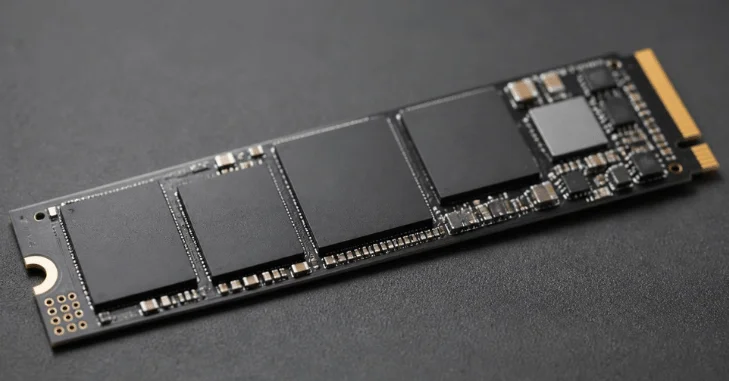
The connector edge uses keyed notches that help prevent incompatible modules from being inserted into certain sockets. Storage buyers commonly encounter B-key, M-key, and B+M-key arrangements, although keying alone should not be treated as a complete protocol test. A card can physically resemble another drive while still depending on different electrical support from the host.
For that reason, do not buy solely because the notch appears to match your motherboard. Read the computer or motherboard documentation and confirm whether the socket supports SATA, PCIe/NVMe, or both. Kingston also notes that some motherboard sockets share PCIe lanes or SATA resources with other ports, which can affect how connected devices operate.
How to Check SSD Compatibility Before You Buy
A compatibility check takes only a few minutes and can prevent the most common upgrade mistakes. Start with the exact model number of your laptop, motherboard, handheld, or console rather than relying on a retailer’s generic compatibility claim. If you are comparing laptop configurations that already use PCIe NVMe storage, Techrolab’s HP Dragonfly G4 overview provides an example of how storage specifications appear in a full system specification.
- Identify the device or motherboard model. Use the manufacturer label, system-information utility, or motherboard documentation.
- Confirm the slot’s storage interface. Look specifically for SATA support, PCIe support, NVMe support, and available lane width.
- Check the permitted card length. Verify whether the device accepts 2230, 2242, 2260, 2280, 22110, or several sizes.
- Check the PCIe generation. A newer drive may operate in an older compatible slot, but its maximum speed will be limited by that connection.
- Review physical clearance and cooling. Laptops may have strict thickness limits, while high-performance desktop drives may benefit from a motherboard heatsink.
- Check shared-lane restrictions. Some motherboard sockets can disable or reduce access to another SATA port or PCIe connection when populated.
Desktop users should also identify which sockets connect most directly to the CPU and which ones route through the chipset. Motherboard manuals normally document these details along with lane-sharing behavior. This check becomes more important when a system contains several storage devices, a high-end graphics card, or additional PCIe expansion cards.
A computer with soldered or otherwise non-serviceable storage is a different situation because there may be nothing for the owner to replace internally. Techrolab’s Mac Mini M2 overview is useful for seeing how storage is presented as a configuration choice in a compact desktop rather than a conventional DIY upgrade. Always confirm serviceability before purchasing a drive for an existing machine.
PCIe Generation, Real-World Speed, and Heat
PCIe 5.0 provides twice the per-lane transfer rate of PCIe 4.0, and a four-lane Gen5 connection has a theoretical bandwidth of roughly 16 GB/s. Current high-end consumer drives can reach sequential read speeds above 13 GB/s under suitable test conditions, although application performance varies by workload. Gigabyte, for example, lists up to 13,600 MB/s sequential read speed for one of its Gen5 1 TB models.
Higher interface bandwidth does not mean every buyer needs the newest generation. Everyday boot times, browser use, office applications, and light gaming may show much smaller differences than large sequential file transfers or demanding workstation tasks. Faster drives can also generate more heat, so motherboard heatsinks and laptop thermal limits deserve attention when selecting high-performance storage.
Desktop, Laptop, Handheld, and PS5 Requirements Differ
Desktop PCs usually give you the most flexibility because many motherboards offer multiple sockets, several mounting lengths, and integrated heatsinks. Laptops often impose tighter length, thickness, and thermal limits, and some machines may use compact 2230 or 2242 cards. Before opening a notebook, review its service manual and warranty terms instead of assuming desktop installation instructions apply.
Handheld gaming PCs and other compact systems are another case where physical dimensions can become the deciding factor. A 2230 drive may use the same storage technology as a larger card while fitting a space where an 80 mm board cannot. Capacity, endurance, controller design, power draw, and thermal behavior still vary from model to model.
Sony applies its own requirements to PlayStation 5 storage expansion. Its current support information specifies PCIe Gen4 x4 NVMe, Key M, capacities from 250 GB to 8 TB, several supported lengths, and an appropriate heat-dissipation solution; Sony recommends sequential reads of 5,500 MB/s or faster. SATA models are not supported for the internal PS5 expansion slot.
Installation Basics and Common Mistakes
Power the computer down completely before installing or removing an internal SSD, because these modules are not designed as hot-pluggable consumer storage. Insert the card at the angle recommended by the system manufacturer, press it into position, and secure it with the correct screw or tool-free retention mechanism. After startup, check the BIOS or operating system if the new storage does not immediately appear.
Do not force a card into a connector, leave it unsecured, or remove a factory thermal pad without knowing its purpose. Also remember that a newly installed blank drive may need to be initialized, partitioned, and formatted before Windows shows it as usable storage. If a laptop develops unrelated power or firmware problems during troubleshooting, Techrolab’s laptop charging and BIOS troubleshooting guide covers several hardware and firmware checks.
Frequently Asked Questions
Is M.2 the same as NVMe?
No. The first term describes a physical form-factor family, while NVMe is a storage communication protocol commonly used over PCIe. This is why an SSD with the compact card shape can be either an NVMe model or, on compatible older hardware, a SATA model.
Is a 2280 SSD faster than a 2230 SSD?
Not because of its length. Those numbers describe physical dimensions, while performance depends on the interface, PCIe generation, controller, NAND, firmware, thermal conditions, and individual drive design. Compare measured performance and specifications rather than assuming that a longer card is automatically quicker.
Can a PCIe 5.0 SSD work in a PCIe 4.0 slot?
A Gen5 drive can generally operate in a compatible Gen4 connection because PCIe supports generation interoperability. The link will run at the capability supported by the older connection, so you will not receive Gen5 bandwidth. You should still verify the motherboard documentation because physical support and lane configuration can differ.
Does every SSD socket support both SATA and NVMe drives?
No. Some sockets support PCIe storage only, some older systems support SATA, and other implementations can support more than one interface. A drive may physically fit yet remain unsupported electrically, so the system manual should settle the question before you order a replacement.
Choose the Drive by Compatibility, Not Shape Alone
The safest buying process starts with your computer or motherboard specifications and works outward to the SSD rather than the other way around. Confirm interface support, physical length, PCIe generation, available lanes, thermal clearance, and any shared-port restrictions before comparing advertised speeds. That approach prevents paying for performance your system cannot use and reduces the risk of ordering a drive that does not work.
If you are replacing or adding an M.2 drive, save the exact system model number before shopping and compare the manufacturer’s storage requirements against the drive specification sheet. For a typical modern desktop, a 2280 PCIe NVMe model will often be the relevant category, while laptops, handhelds, and consoles can have tighter rules. Compatibility comes first; capacity, endurance, speed, warranty, and price come next.