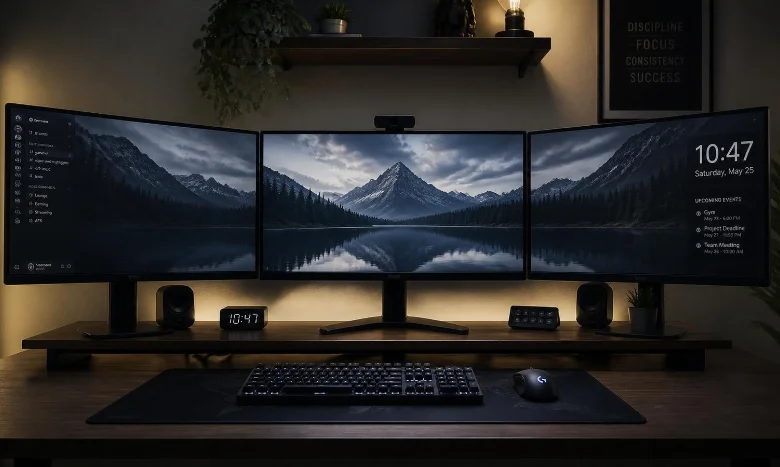
A 3-monitor setup gives you more usable screen space without forcing every task onto one display. It works well for productivity, coding, trading, creative work, streaming, and gaming. The best results depend on your computer, connections, desk space, and screen placement. Elsewhere on the site: SRT File.
Three screens should feel easier to use, not harder on your neck or eyes. Your main display should stay directly in front of you whenever possible. The two side screens can then support secondary apps, references, communication, or entertainment.
Quick answer: A 3-monitor setup needs a computer capable of driving three displays, suitable HDMI, DisplayPort, or USB-C connections, and enough desk space. Connect each screen, extend the desktop in your operating system, arrange the displays correctly, then adjust height, viewing distance, scaling, and cable management for comfort.
3-Monitor Setup at a Glance
| Setup factor | Practical recommendation |
|---|---|
| Main display | Place directly in front of your normal sitting position |
| Side displays | Angle inward toward your viewing position |
| Typical screen size | 24 to 27 inches works well on many desks |
| Viewing distance | About 20 to 40 inches, depending on screen size |
| Connections | HDMI, DisplayPort, USB-C, Thunderbolt, or a compatible dock |
| Windows mode | Extend these displays |
| Mounting | Individual arms or a rated triple-monitor mount |
| Best use | Multitasking, coding, editing, trading, streaming, and simulation games |
Key Takeaways
- Confirm your computer supports three simultaneous displays before buying extra screens.
- Check available graphics ports instead of counting USB-C connectors alone.
- Put your primary screen directly ahead of you.
- Use matching resolutions and scaling when practical.
- Monitor arms can free desk space and simplify alignment.
- Windows 11 supports extended desktops across several detected displays.
- Mac display limits depend heavily on the exact processor and model.
- Good ergonomics matter more than creating a perfectly symmetrical desk.
What You Need Before Connecting 3-Monitor Setup
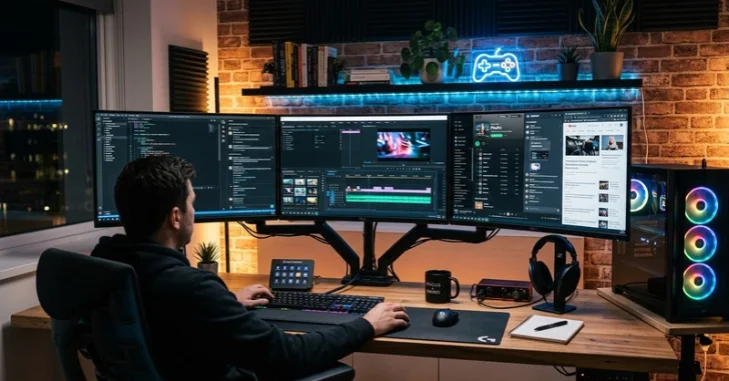
3-Monitor Setup: Start by checking your computer’s graphics capabilities before configuring your 3-monitor setup. Three physical ports do not always guarantee support for three simultaneous displays. Laptop specifications can be especially restrictive because the internal screen may count toward the maximum number of supported displays.
Desktop users should inspect the graphics card before connecting anything. Most modern dedicated cards provide several HDMI or DisplayPort outputs, but supported combinations vary. Techrolab’s external GPU guide explains another option for compatible laptops needing stronger graphics hardware.
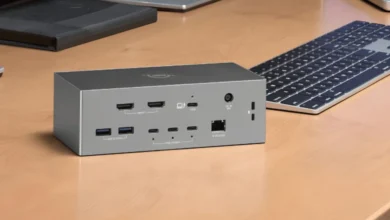
You also need the right cables for each monitor. DisplayPort, HDMI, USB-C, and Thunderbolt can all carry video under suitable conditions. Never assume every USB-C connector supports video output because identical connector shapes can support different features.
How to Build a 3 Monitor Setup in 7 Steps
The physical setup and software configuration should be handled separately. First, confirm that every screen receives a valid video signal. Then arrange the displays inside your operating system to match their real positions.
Windows users can manage multiple screens through Settings, System, and Display. Microsoft also provides Identify and Detect controls when several monitors are connected. These tools prevent frustrating cursor movement caused by an incorrect virtual arrangement.
1. Confirm Your Computer Supports Three Displays
Find the specifications for your graphics card, laptop, mini PC, or docking station. Look specifically for the maximum number of simultaneous external displays. Also check the supported resolution and refresh rate for each connection.
Laptop owners should pay close attention to processor-specific display limits. Some machines support several ports but fewer active screens. Apple, for example, lists different external-display limits across MacBook Pro chip configurations.
2. Choose a Practical Monitor Arrangement
A horizontal arrangement works well for most office and gaming desks. Put your primary screen in the center and angle the side panels inward. This position reduces how far you must repeatedly turn your head.
Portrait orientation can help programmers, researchers, and writers with long documents. One vertical side screen can display code, messages, or reference material efficiently. Keep the center display in landscape mode when it contains your primary work.
3. Connect Each Display to the Correct Video Output
Connect desktop monitors to the dedicated graphics card when your system uses one. Avoid mixing motherboard outputs without confirming that integrated graphics remain enabled. Your computer manufacturer or motherboard documentation should explain supported combinations.
Different cable types can coexist in one system. You might use DisplayPort for one screen and HDMI for another. Techrolab’s Gigabyte motherboard guide provides useful background on common display and expansion connections.
4. Extend and Arrange the Displays in Windows 11
Open Settings > System > Display after connecting all three screens. Select Identify to show a number on each physical display. Drag the numbered rectangles until they match the arrangement on your desk.
Choose Extend these displays instead of Duplicate for a larger desktop. Set your center screen as the main display for normal work. Move your cursor between screens afterward to confirm that every edge lines up correctly.
If a screen does not appear, use the Detect option under multiple-display settings. Check power, input selection, and cable connections before changing advanced settings. Updating your graphics driver can also resolve detection problems.
5. Match Resolution, Scaling, and Refresh Rates
Run each monitor at its recommended native resolution when possible. Text and interface elements usually appear sharper at the panel’s intended resolution. Windows scaling can make text larger without lowering the screen resolution.
Matching refresh rates can create a more consistent experience across displays. This matters most when windows or animations frequently move between screens. Gamers should also check whether the graphics card can handle their combined rendering workload.
If gaming is your priority, display specifications deserve extra attention. Techrolab’s monitor guide for Xbox Series X explains refresh rate, resolution, HDMI standards, and response-time considerations. Those same concepts help when selecting PC gaming displays.
6. Position the Screens for Better Ergonomics
Place the center display directly in front of your normal seated position. OSHA recommends keeping monitors at least 20 inches away from the viewer. Its workstation guidance gives a preferred range of roughly 20 to 40 inches.
Keep the top line of the primary screen at or below eye level. Side displays should sit close enough that you avoid repeated extreme neck rotation. Your chair, keyboard, and desk depth should support the same neutral working position.
A monitor arm can help when standard stands consume too much desk space. Check the monitor’s weight and VESA mounting pattern before buying one. The arm must also support the total weight of every attached screen.
7. Organize Cables and Test Your Workflow
Three screens create more power and video cables than most desks can hide naturally. Route cables behind the monitor arms or through a desk tray when possible. Leave enough slack for height, tilt, and rotation adjustments.
Then assign a clear role to each display for several working days. Keep your main task in the center and supporting information on either side. Change the layout if one screen forces frequent uncomfortable movement.
Best Triple-Screen Layouts for Different Uses
No single arrangement works for every user. Your workflow should decide which applications deserve the central screen. Screen symmetry matters less than reducing unnecessary movement.
| Use case | Center screen | Left screen | Right screen |
|---|---|---|---|
| Office work | Main document or browser | Email and calendar | Research or communication |
| Programming | Code editor | Documentation | Terminal and testing |
| Video editing | Editing timeline | Media library | Preview or scopes |
| Streaming | Game or content | Stream controls | Chat and monitoring |
| Trading | Main charts | News or watchlists | Orders and account data |
| Gaming | Main game display | Discord or guides | Streaming or monitoring |
For normal productivity, three matching 24-inch or 27-inch panels create a clean experience. Matching panels simplify height, color, scaling, and bezel alignment. Mixed monitors still work when you already own usable displays.
A stacked arrangement can save horizontal space but requires more vertical head movement. It works better for passive information than constant interaction. Put frequently used applications on screens closest to your natural viewing position.
Desktop Versus Laptop Triple-Monitor Connections
Desktop PCs usually offer the simplest connection path because dedicated GPUs often include several video outputs. Connect the screens directly to those ports whenever possible. Check the graphics card’s specifications before assuming every port works simultaneously.
Laptops often require a compatible dock, Thunderbolt connection, or USB-C DisplayPort Alt Mode. The laptop itself still determines how many native displays it can support. A dock cannot automatically override the computer’s graphics limitations.
Older screens can also complicate modern connections. Techrolab’s CRT monitor guide explains why older VGA-era displays may require active conversion hardware. Modern flat panels usually provide a simpler path for everyday multi-screen use.
Common Problems and Quick Fixes
A missing third display usually points to compatibility, cables, inputs, drivers, or connection limits. Test the missing screen alone before blaming the monitor. That simple check helps separate screen problems from multi-display limitations.
Flickering often suggests an unstable cable, unsupported refresh setting, or connection bandwidth problem. Lower the refresh rate temporarily and test another certified cable. Avoid inexpensive adapters when high resolutions or refresh rates demand substantial bandwidth.
Mismatched cursor movement usually comes from incorrect display placement inside Windows settings. Use Identify and drag each virtual display into the correct physical position. Small vertical alignment changes can also make crossing between screens feel more natural.
Is a Three-Monitor Workspace Worth It?
Three displays make sense when you repeatedly use several applications at the same time. They reduce window switching because more information remains visible. The benefit becomes smaller when your work usually stays inside one application.
Desk size should influence the decision as much as computer performance. Three large panels on a shallow desk can create uncomfortable viewing angles. Two well-positioned screens may be better than three poorly positioned ones.
Gaming needs also deserve separate consideration. Triple-screen simulation can demand far more GPU performance than one display. Productivity applications generally place much lighter graphics demands on the computer.
Build the Setup Around Your Work
A triple-screen desk works best when every monitor has a clear purpose. Start with hardware compatibility before buying mounts, adapters, or additional displays. Then build the physical arrangement around your posture and daily workflow.
Keep the main screen directly ahead and treat side displays as supporting workspaces. Test the arrangement before making permanent cable or mounting changes. A comfortable setup should reduce friction instead of giving you more screens to manage.
For more display and PC hardware guidance, explore Techrolab’s hardware and technology resources. Compare your computer’s specifications with each monitor’s connection requirements before purchasing accessories. That approach helps you build a workspace that remains useful beyond the first week.
Frequently Asked Questions
Can any PC run a 3-monitor setup?
No, hardware support varies between computers and graphics processors. Check the maximum supported display count before buying additional monitors. Ports alone do not prove that all connected displays can operate simultaneously.
Do I need three identical monitors?
Identical displays are helpful but not required. Matching models make resolution, scaling, color, height, and bezel alignment easier. Mixed screens work well when each one has a clear purpose.
Can Windows 11 handle three monitors?
Yes, Windows 11 supports multiple connected displays and extended desktop arrangements. You can identify, detect, reposition, and configure each detected monitor. The computer’s graphics hardware still determines how many screens can work simultaneously.
Can a laptop connect to three external monitors?
Some laptops can, while others cannot. The answer depends on the processor, graphics hardware, ports, and docking support. Check your exact model’s external-display specifications before purchasing a dock.
Is DisplayPort better than HDMI for three monitors?
Either connection can work well when its version supports your target resolution and refresh rate. DisplayPort may offer useful multi-display features on compatible hardware. HDMI remains common and works well for many standard configurations.
How far should I sit from three monitors?
OSHA recommends keeping a computer monitor at least 20 inches from your eyes. Its preferred viewing range is approximately 20 to 40 inches. Larger screens may require more distance for comfortable viewing.