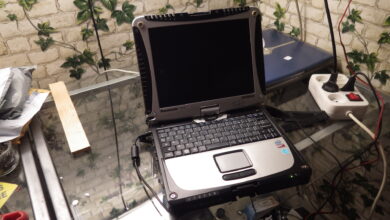
Most portable computers remain useful for several years before performance, battery wear, or software support becomes limiting. So, how long do laptops last in real life? For most U.S. users, roughly three to six years is a reasonable planning range, although well-built systems can remain useful longer. Quick answer: A typical notebook can remain useful for about three to six years. Budget models may feel outdated sooner, while premium business systems can work well beyond five years. Usage, cooling, battery condition, repairability, and software support usually matter more than age alone.
| Laptop type or use | Typical useful range | Common reason for replacement |
|---|---|---|
| Budget consumer model | 3–5 years | Performance, hinges, battery wear |
| Mid-range everyday model | 4–6 years | Battery, storage, newer software |
| Premium or business model | 5–8 years | Software support or changing workloads |
| Gaming model | 3–5 years | Heat, graphics demands, limited upgrades |
| Light-use household model | 5+ years | Security support or battery aging |
These ranges are planning estimates rather than expiration dates. Current guidance varies because build quality, workload, and maintenance differ significantly between users. A computer that still performs its required tasks does not need replacement simply because it reaches a certain birthday.
How Long Do Laptops Last on Average?
Three to six years is a sensible expectation for an everyday portable computer in the United States. HP currently places a typical notebook around three to five years, while other repair specialists report broader ranges. Premium business hardware can continue working longer when it receives proper maintenance. Useful life and physical life are also different things. A seven-year-old machine may still turn on yet struggle with current applications. Meanwhile, a four-year-old business system might remain fast enough for email, office work, browsing, and video calls. Your workload often determines when a computer feels old. Web browsing and documents require modest resources compared with video editing, engineering software, or current games. Demanding workloads can make otherwise healthy hardware feel outdated sooner.
What Determines a Laptop’s Lifespan?
Build quality creates an important starting point, but it does not determine everything. Cooling design, component quality, hinge construction, and repair access can all affect long-term reliability. Business-class hardware often emphasizes durability and serviceability more than inexpensive consumer designs. Heat can shorten useful life because processors, batteries, and other components perform poorly under excessive temperatures. Dust buildup can also reduce airflow and force cooling fans to work harder. HP recommends keeping vents clear and using portable computers on firm, flat surfaces. Physical handling matters as well. A computer carried between school, work, airports, and coffee shops faces more drops and impacts. Spills, cracked displays, damaged charging ports, and worn hinges can end an otherwise healthy machine’s useful life.
Battery Life and Laptop Life Are Not the Same
A worn battery does not mean the entire computer has reached the end of its life. Lithium-ion batteries gradually lose capacity as charging cycles accumulate. Replacing a battery can restore mobility when the processor, display, storage, and motherboard remain healthy. Manufacturers also use different cycle expectations. ASUS says its lithium-ion notebook batteries commonly have an estimated life of about 300 to 500 cycles. Apple lists 1,000-cycle limits for many modern MacBook models, although individual performance varies. Poor runtime should therefore trigger diagnosis before replacement. Check battery health, charging behavior, cable condition, and heat before buying another computer. Techrolab’s laptop charging troubleshooting guide explains several practical checks for battery and power problems.
How Long Different Types Usually Remain Useful
Budget computers often reach their practical limits sooner because manufacturers must make compromises somewhere. Lower-cost systems may use smaller memory configurations, weaker processors, simpler cooling, or less durable construction. That does not mean every affordable machine will fail early. Mid-range systems usually provide a stronger balance between price and longevity. Adequate memory, solid-state storage, and a capable processor can keep everyday work comfortable for years. Upgradeable storage or memory can further extend usefulness. Gaming systems face a different challenge. Their processors and graphics hardware regularly operate under heavier loads and generate substantial heat. New games also become more demanding, so a functional machine may feel outdated before it develops a hardware fault. Business and rugged systems can remain useful longer under the right conditions. Better service access, replacement parts, stronger chassis designs, and longer support programs can help. Techrolab also explains why rugged laptops may offer longer deployment cycles in harsh working environments.
Software Support Can End a Laptop’s Useful Life
Hardware is only part of the lifespan question. Security updates and operating-system compatibility can make an older computer impractical even when every component still works. Unsupported software can expose users to security risks and compatibility problems. This issue became especially relevant for Windows users after free Windows 10 support ended on October 14, 2025. Microsoft requires compatible processors, TPM 2.0, Secure Boot support, and other features for Windows 11. Some older computers cannot meet those requirements without unsupported workarounds. Before paying for an expensive repair, check your operating system’s support status. Confirm that your essential applications still support the device as well. A reliable motherboard provides little value if necessary software no longer runs safely.

6 Signs Your Laptop May Need Replacement
Age alone should not make the decision. Look for several problems appearing together rather than one inexpensive fault. A battery replacement is different from repeated failures across multiple major components. Watch for these signs:
- The computer cannot receive current security updates.
- Required programs have become painfully slow.
- Frequent crashes continue after software troubleshooting.
- Repairs cost a large percentage of a comparable replacement.
- The battery, keyboard, ports, and hinges are failing together.
- Your workload now requires hardware the system cannot provide.
Performance problems deserve diagnosis before replacement. A slow storage drive, insufficient memory, or overheating can sometimes be corrected economically. Replacing an upgradeable component may deliver another useful year or more.
Can an SSD or RAM Upgrade Extend Its Life?
Yes, when the bottleneck involves storage or memory rather than the processor. Moving from an old hard drive to an SSD can make startup and application loading much faster. Additional RAM can also help systems that regularly run out of memory. Compatibility must come first because newer thin systems often solder components to the motherboard. Storage sizes, interfaces, and available slots also vary between models. Techrolab’s M.2 SSD compatibility guide explains how form factor, NVMe, SATA, and PCIe support differ. Firmware may also need attention after hardware changes or during troubleshooting. Users who need to check storage detection or system settings can follow Techrolab’s guide to opening BIOS or UEFI. Avoid changing unrelated firmware options while troubleshooting.
How to Make Your Laptop Last Longer
Keeping temperatures under control is one of the most useful habits. Use the computer on a hard surface that leaves ventilation openings unobstructed. Clean accumulated dust before restricted airflow becomes a persistent overheating problem. Battery care also matters. Avoid exposing the machine to extreme heat, and use manufacturer battery-care settings when available. Modern charging systems manage charging automatically, so obsessive unplugging is unnecessary. Handle the computer carefully when traveling. A padded sleeve protects the display, corners, and hinges from impacts inside a backpack. Keeping drinks away from the keyboard can prevent one accident from ending years of otherwise reliable service. Software maintenance helps too. Install supported operating-system, driver, and firmware updates while they remain available. Back up important files because even a well-maintained storage device can fail unexpectedly.
Is It Better to Repair or Replace an Old Laptop?
Start by comparing the repair with the computer’s remaining usefulness. A new battery, fan, keyboard, or SSD may make sense when everything else works properly. Several simultaneous problems make replacement easier to justify. You can also compare repair cost with the price of an equivalent replacement. A repair approaching roughly half the replacement cost deserves careful consideration, especially on an older system. Treat that percentage as a budgeting rule rather than a technical standard. Software support should influence the decision as much as price. Spending heavily on unsupported hardware can create another replacement decision soon afterward. Repairs offer better value when the computer remains secure, compatible, and powerful enough for your needs.
Frequently Asked Questions
How long do laptops last if you use one every day?
Daily use does not automatically shorten a computer’s life dramatically. A well-maintained everyday system can remain useful for several years. Heavy gaming, rendering, excessive heat, and rough handling usually create more wear than ordinary office use.
Can a laptop last 10 years?
Yes, certain machines can still function after ten years. Light workloads and good maintenance make that outcome more likely. Software compatibility, security updates, and battery availability may become bigger obstacles than hardware failure.
Is a five-year-old laptop considered old?
Five years is mature for a portable computer, but age alone does not require replacement. Check speed, battery health, reliability, and security support first. A five-year-old business system may remain perfectly adequate for everyday work.
What usually fails first?
The battery is often one of the earliest components to show noticeable aging. Fans, charging ports, keyboards, storage devices, and hinges can also wear over time. Many of these parts are repairable without replacing the entire machine.
Do expensive laptops last longer?
Higher prices can buy stronger construction, better cooling, faster components, and easier servicing. Price alone cannot guarantee longevity, though. A well-designed mid-range system may outlast an expensive model that runs hot or cannot be repaired.
The Bottom Line
Most U.S. users should plan for roughly three to six useful years from a portable computer. Premium and business models can last longer, while demanding workloads may shorten the practical upgrade cycle. Condition and capability matter more than a date printed on the purchase receipt. Before replacing an aging system, check battery health, storage, memory, cooling, and current software support. Repairing one worn component can be much cheaper than buying another machine. Replace the computer when several limitations combine and the device no longer meets your needs safely. —