Introduction
Many iPhone users often wonder how to clear up storage on iPhone, especially when space runs low due to apps, photos, and videos. This guide provides practical steps on how to clear storage on your iPhone using built-in features such as app offloading, iCloud, and photo optimization. You’ll learn how to check storage, delete unused apps, manage large files, and improve Safari’s performance.
It also explains how to remove downloaded media and use external storage tools. Whether you’re a casual user or a frequent app downloader, this article simplifies everything, making storage cleanup easy and stress-free. From automatic message deletion to enhancing browser speed, every section ensures your iPhone runs more smoothly without compromising important content.
| Basics | Details |
| Check Storage | View usage in Settings. |
| Delete Apps | Remove unused apps. |
| Offload Apps | Free space, keep app data. |
| Clear App Cache | Delete app data if needed. |
| Optimize Photos | Use the “Optimize Storage” setting. |
| Use Cloud Storage | Store media in iCloud or Google Photos. |
| Empty Deleted Album | Permanently delete old photos. |
| Auto-Delete Messages | Set messages to auto-remove. |
| Delete Chat Media | Clear videos/images from Messages. |
| Clear Safari History | Erase browser data. |
| Improve Safari Speed | Speeds up browsing. |
| Delete Music | Remove downloaded songs. |
| Remove Videos | Delete offline shows. |
| Use iCloud Drive | Store files in the cloud. |
How to Clear Up Storage on iPhone? Check Your Storage First
Before clearing space, it’s essential to identify what’s occupying it. Select Settings > General > Storage on your iPhone. This screen displays the amount of space used by apps, photos, media, and system files. Making smarter selections is aided by being aware of what is filling your storage. If you’re figuring out how to clear up storage on iPhone, this is the first thing to check before deleting anything.

Remove and Offload Apps
- Freeing up space is easier when you deal with unused apps first. Try these steps:
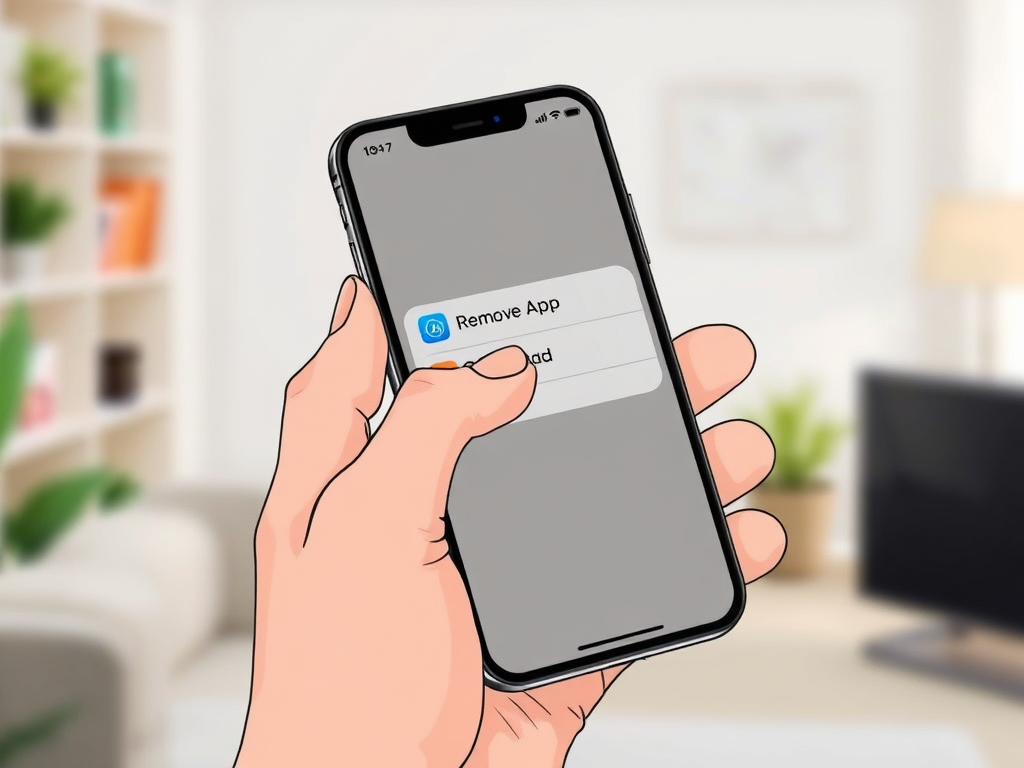
- Apps can be deleted by holding down the icon, selecting “Remove App,” and then confirming.
- Offload Apps: Navigate to Settings > iPhone Storage, select “Offload App,” and then tap an app.
- Keep Data: Offloading removes the app but keeps its data saved for later use.
- This helps you clear space without losing your saved content.
Manage Photo and Video Storage
Frequently, images and videos take up the most storage space. Use these tips to manage them:
- Optimize Photos: Go to Settings > Apps > Photos (on iOS 18 and later) and enable “Optimize iPhone Storage.”
- Back Up to Cloud: Use iCloud, Google Photos, or other cloud services to back up and remove local copies.
- Clear Deleted Items: Empty the “Recently Deleted” folder to remove files permanently.
- This can quickly free up multiple gigabytes of space.
Clear Messages and Attachments
Old message threads and large attachments can quickly fill your storage space. One of the easiest ways how to clear up storage on iPhone is to go to Settings > Apps > Messages > Keep Messages (on iOS 18 and later), and change it to 30 Days or 1 Year. You can also manually delete media from chats. Removing old conversations and videos can make a surprising difference to your available space.
Clear Safari Cache and History
Delete Safari Data
Safari stores website data that builds up over time. To remove it, go to Settings > Apps > Safari > Clear History and Website Data (on iOS 18 and later). This clears cookies, history, and other saved data, without touching your bookmarks or passwords. Doing this regularly is an easy way to recover space while keeping your browser running smoothly and your storage more manageable.
Boost Browser Speed
In addition to helping with how to clear up storage on iPhone, clearing Safari data improves overall browsing performance. A clean browser runs faster, loads pages more smoothly, and avoids lag. If you visit many websites or use Safari often, this minor cleanup makes a noticeable difference, especially when combined with other storage-saving techniques across your iPhone.
Remove Downloaded Media
Delete Music and Podcasts
Songs and podcast episodes you’ve downloaded can quietly consume storage space over time. Go to your Music or Podcast app and remove any offline content you no longer listen to. This is one of the most direct methods for clearing up storage on iPhone and is especially helpful if you prefer streaming instead of storing.

Clear Downloaded Videos
Streaming apps like Netflix or Prime Video often store shows for offline viewing. Head into those apps and delete content you’ve already watched. You’ll gain back storage instantly. Since videos are large files, just clearing a few can free up gigabytes. Make it a habit to review downloaded media after trips or offline use, and your storage will stay under control. By clearing videos, a significant amount of extra space can be optimized.
Use iCloud or External Storage.
Cloud storage is a top solution for how to clear up storage on iPhone. Enable iCloud Photos, iCloud Drive, and other features to store files online instead of locally. Apple offers 5GB of free storage, or you can upgrade for more. If hardware is more your style, utilize an external drive that is compatible with your iPhone. This lets you back up photos, videos, and documents while keeping your phone’s space free.

Conclusion
Learning how to clear up storage on iPhone helps keep your device running smoothly and efficiently. By managing apps, deleting old media, clearing browser data, and using iCloud or external storage, you can free up valuable space without losing important content. Regular cleanups not only improve performance but also prevent storage warnings. With these simple steps, your iPhone stays organized, faster, and ready for whatever you need it to do.
Want to know about “The Future of Document Processing: What to Expect in the Next 5 Years” Check out our “Al tech” category.
FAQs
Navigate to Settings > General > iPhone Storage to view storage. This shows a breakdown of apps, photos, and other files using space on your device.
Offloading removes the app but keeps its data and documents, freeing storage without losing your saved information. You can easily reinstall the app later.
Enable “Optimize iPhone Storage” in Settings > Photos or back up pictures to iCloud or other cloud services, then delete local copies to free up space.